Blog
How to Split Names in Excel: Practical Guide to TEXTSPLIT, LEFT, and MID Functions
 Sik Yang · Feb 12, 2026
When organizing customer lists, employee records, or survey responses in Excel, names often arrive in a single cell. Splitting them sounds simple: use a space as the separator. In real data, however, spacing is inconsistent, middle names appear in only some rows, and international names do not always follow the same pattern.
That is why name splitting is not just a formula problem. It is a data quality problem. The safest method depends on how consistent the source data is.
Splitting Names with Text to Columns
Text to Columns is the fastest option when every name follows the same pattern. If each cell contains one first name and one last name separated by a single space, you can use Data > Text to Columns, choose Delimited, and select Space.
This works well for clean lists such as customer exports where all records follow the same naming structure. It is quick, visual, and does not require formulas.
When Text to Columns Breaks
Text to Columns becomes unreliable when the data includes multiple spaces, leading or trailing spaces, or middle names. A row like John A. Smith creates three parts, while Jane Brown creates two. Excel will split both rows mechanically, which causes columns to misalign.
Before splitting, scan for extra spaces and inconsistent patterns. In many real files, you should clean the data first with TRIM or use formulas that explicitly handle edge cases.
Using FIND, SEARCH, LEFT, RIGHT, and MID
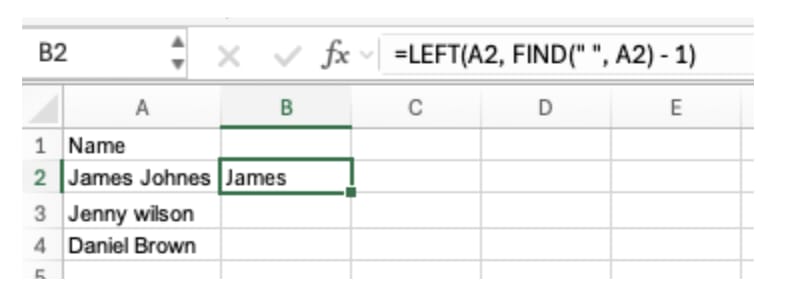
If you want formulas, start by locating the first space with FIND or SEARCH. Then use LEFT to return the first name and RIGHT or MID to return the remaining text.
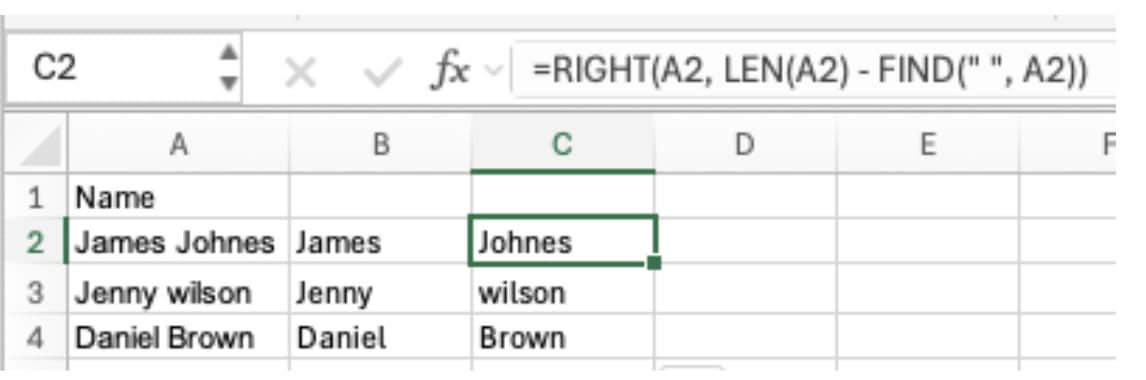
For example, LEFT can extract everything before the first space. MID can extract text after the first space. SEARCH is more flexible than FIND because it is not case-sensitive.
These formulas are useful when you need repeatable logic, but they become harder to maintain as name formats become more complex.
Using TEXTSPLIT in Modern Excel
In Excel 365 and newer versions, TEXTSPLIT can divide a full name by spaces with a shorter formula. It is easier to read and maintain than older combinations of LEFT, RIGHT, MID, and FIND.

Still, TEXTSPLIT does not solve the human naming problem by itself. You must decide how to treat middle names, suffixes, double last names, and blank values.
Practical Standard
Use Text to Columns for clean one-space names. Use formulas when you need repeatable logic. Use manual review for exceptions. The goal is not to automate every row blindly, but to preserve the meaning of each name while reducing repetitive cleanup work.
Make Excel Name Cleanup Easier with inline AI
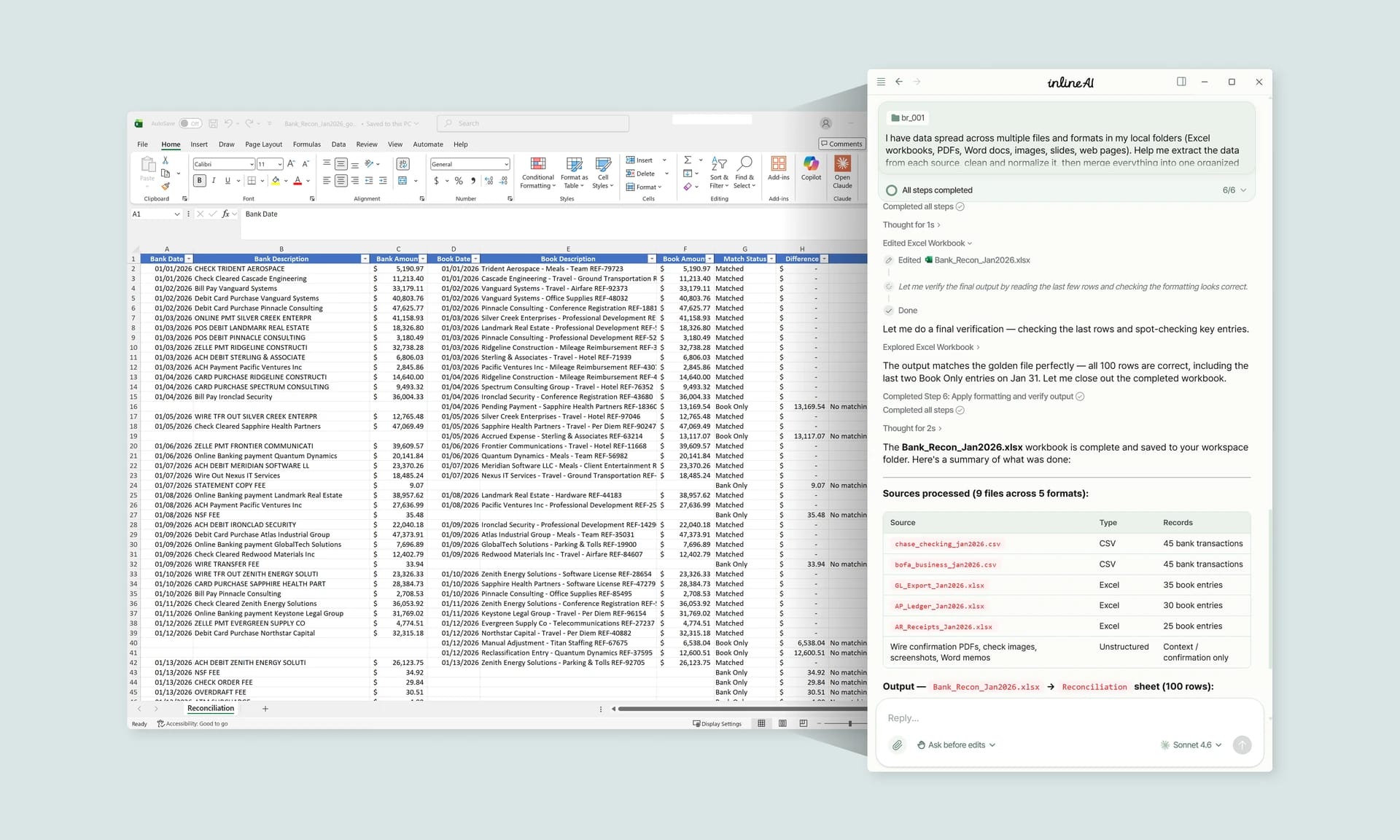
Once you know how to split names in Excel, the next step is reducing the repetitive cleanup around exceptions. Wouldn't it be easier if you did not have to rebuild formulas every time name formats change?
inline AI is a local agent that works directly inside Excel. Ask in natural language, such as split these full names into first and last names, and it can read and edit your Excel file in real time.
Because it runs locally on your PC without uploading your data to the cloud, it can handle sensitive spreadsheets more safely. Download it today and experience the future of Excel work yourself.
Download your AI Coworker for Excel