Blog
How to Make a Table in Excel: Format as Table and Structured References Explained
 Sik Yang · Feb 26, 2026
Most Excel data starts as a normal range. That is fine for static data, but it becomes fragile when rows are added, formulas need to expand, or reports update repeatedly. Excel Tables solve this by turning a range into a structured object.
A Table is not just a visual style. It changes how Excel manages data.
Excel Table vs Range
A range is a group of cells. If your formula is =SUM(B2:B10), adding a new value in B11 does not automatically update the formula.
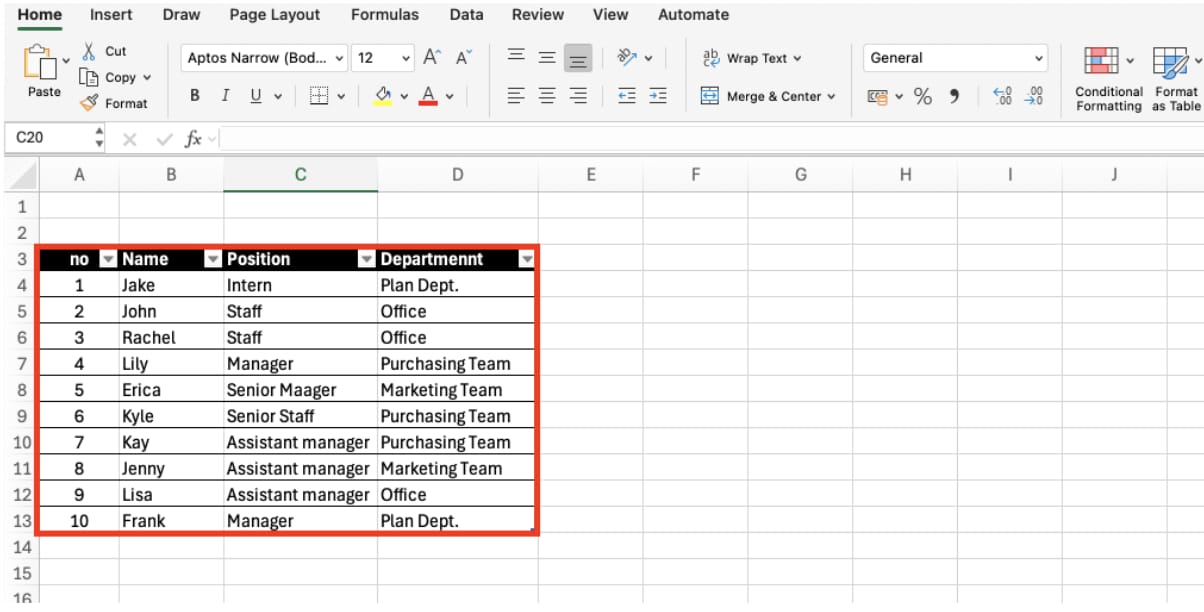
An Excel Table expands automatically when you add new rows. Filters appear by default, formulas fill down, and references can use column names instead of cell addresses.
How to Create a Table
Select your data, go to Home > Format as Table, choose a style, and confirm that your table has headers. You can also press Ctrl+T.
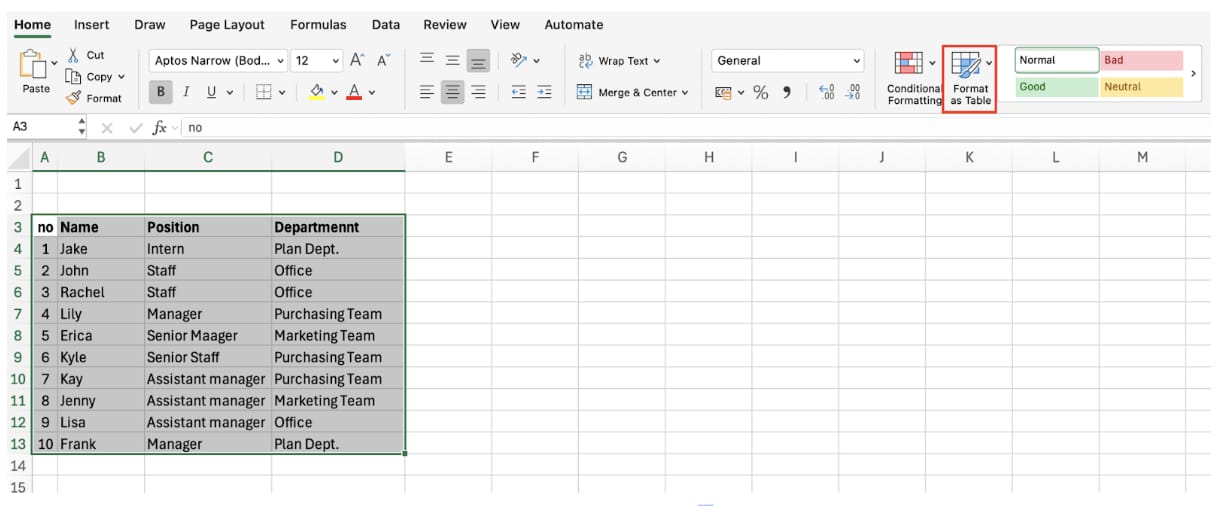
After confirmation, Excel converts the range into a Table with filters, styling, and automatic expansion.
Automatic Expansion
When you type below the last row of a Table, Excel includes the new row in the Table. Formulas and formatting extend automatically.
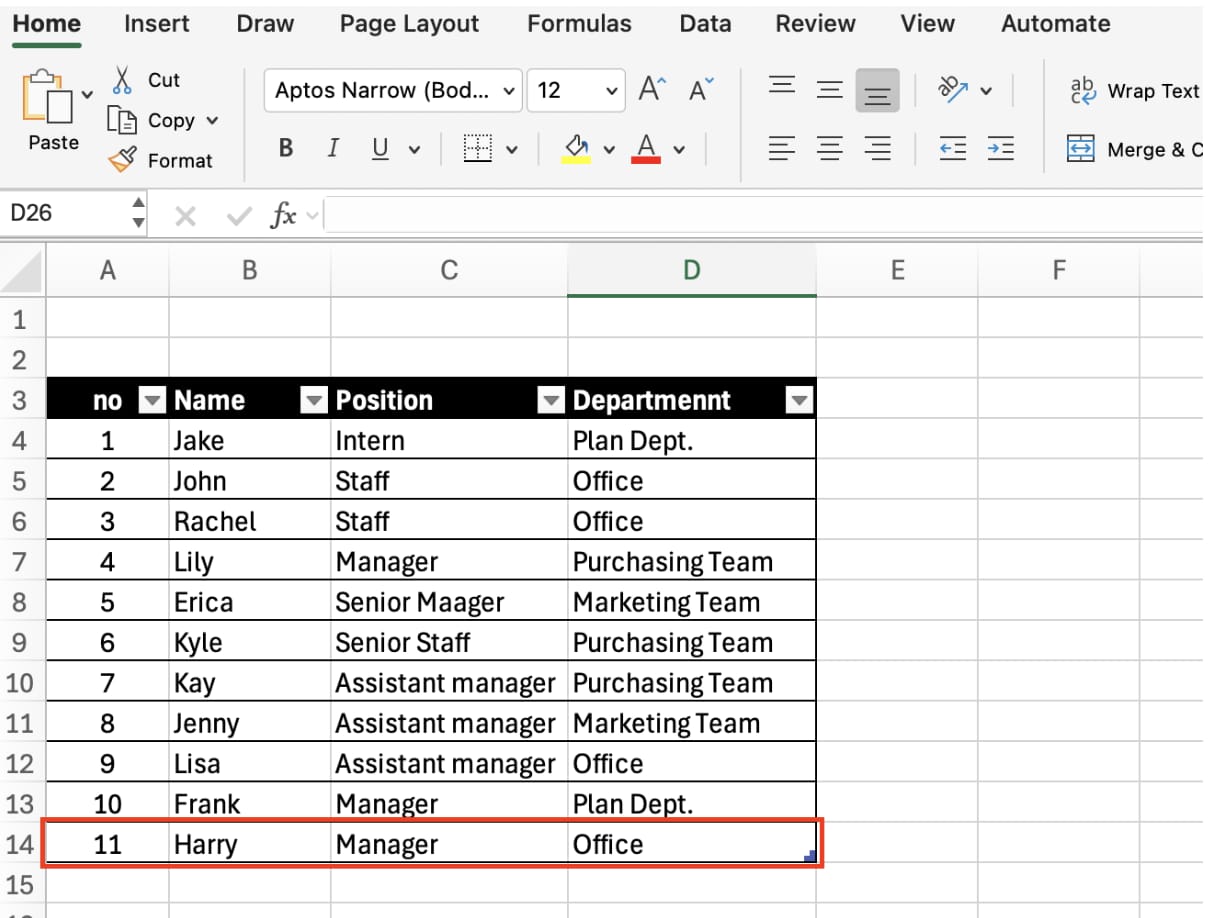
This is valuable for sales logs, inventory lists, project trackers, and any dataset that grows over time.
Structured References
Tables use structured references such as =SUM(Table1[Sales]) instead of =SUM(B2:B10). The formula points to the Sales column by name, so it remains easier to read and more stable when the table grows.
At first, references like [@Sales] may look strange. They simply mean the value in the Sales column for the current row.
Common Issues
If new data does not join the Table, make sure you entered it directly below the Table. If structured references are confusing, rename the Table and columns clearly. If you need a normal range again, use Table Design > Convert to Range.
When to Use Tables
Use Tables for data that changes: sales data, customer lists, inventory, financial logs, and project management data. Converting data to a Table with Ctrl+T is one of the highest-leverage habits in Excel.
Manage Excel Data Automatically with inline AI

Once you understand how to make a table in Excel, the next step is keeping structured data clean as it changes. Wouldn't it be easier to format ranges, expand tables, and keep formulas consistent without repeating the same clicks?
inline AI is a local agent that works directly inside Excel. Ask in natural language, such as turn this range into a clean Excel table, and it can read and edit your Excel file in real time.
Because it runs locally on your PC without uploading your data to the cloud, it can handle sensitive spreadsheets more safely. Download it today and experience the future of Excel work yourself.
Download your AI Coworker for Excel