Blog
How to Concatenate in Excel: CONCAT, CONCATENATE, and TEXTJOIN Made Simple

Your data almost never arrives in the shape you need it. First names sit in one column, last names in another. A full address is scattered across four. And somewhere, someone is asking for all of it in a single, clean cell.
Knowing how to concatenate in Excel, in other words how to combine the contents of several cells into one, is one of those small skills that quietly saves you minutes every single day. Excel gives you three tools for the job: CONCATENATE, CONCAT, and TEXTJOIN. They look interchangeable, but picking the wrong one is exactly why your merged cells keep coming out with missing spaces, broken dates, or doubled-up commas.
This guide breaks down when to use each function, how to drop in spaces and separators, how to stop numbers and dates from falling apart, and the real-world patterns you will reach for almost every week.
CONCATENATE vs CONCAT vs TEXTJOIN: Which One Should You Use?
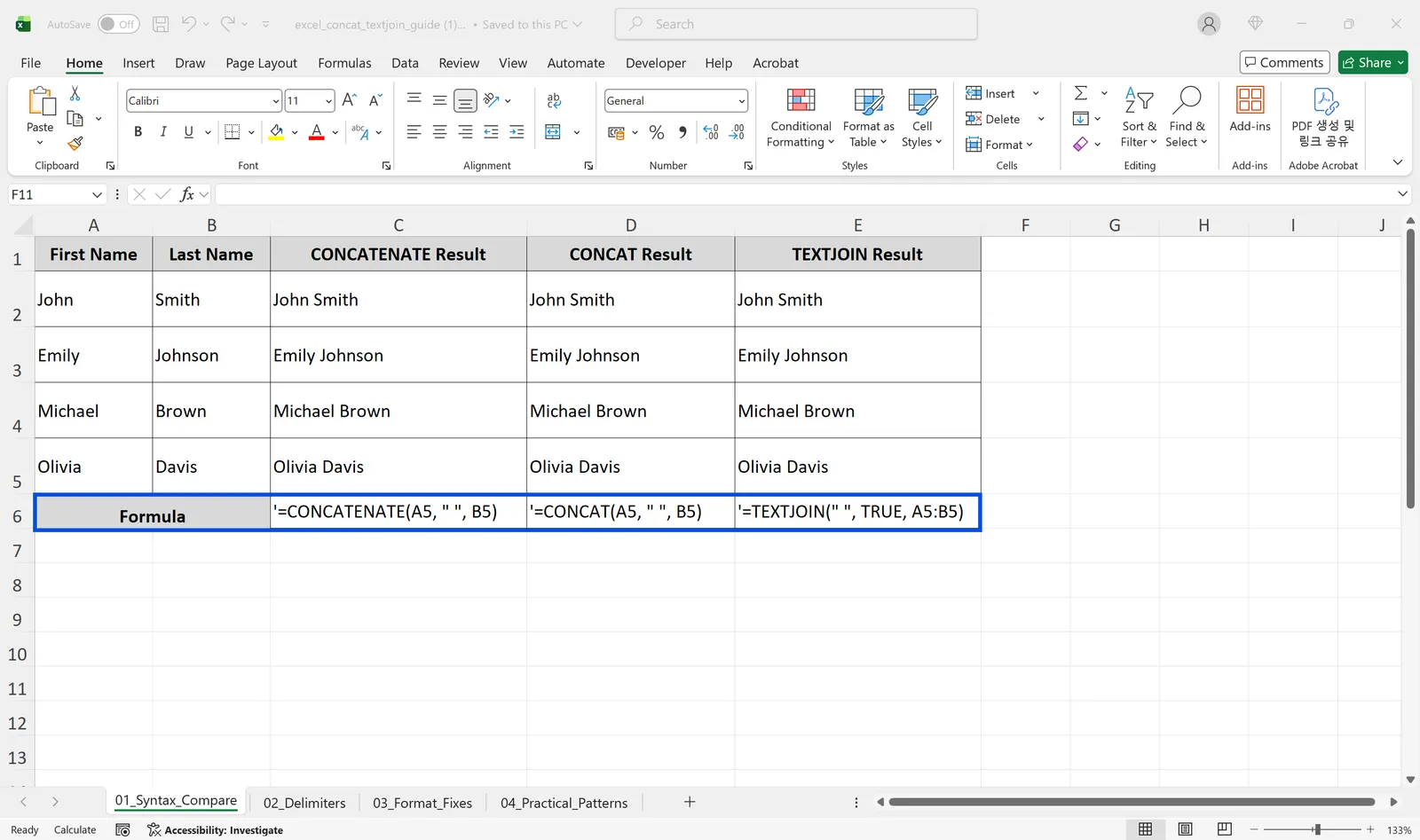
All three functions can turn John and Smith into John Smith. The difference is how much work they save you as your data grows.
CONCATENATE: the legacy option
CONCATENATE is the oldest of the three. You list arguments one at a time, like =CONCATENATE(A2, " ", B2), and it cannot accept a whole range such as A1:A10 in a single shot. It still exists mainly for backward compatibility with Excel 2019 and earlier, so reach for it only when you genuinely need to support those older versions.
CONCAT: the modern replacement
CONCAT is the direct upgrade to CONCATENATE. It accepts ranges, so =CONCAT(A2:C2) joins three cells at once and keeps your formula short. Microsoft officially recommends CONCAT over CONCATENATE for exactly this reason.
TEXTJOIN: the one you will use most
TEXTJOIN follows the structure =TEXTJOIN(delimiter, ignore_empty, range). It controls the separator and how blank cells are handled inside a single function. You do not have to repeat a comma or space between every argument, and it can automatically skip empty cells, which makes it the most practical of the three in day-to-day work.
A quick rule of thumb
| Function | Best for | Accepts ranges? | Availability |
|---|---|---|---|
| CONCATENATE | Legacy compatibility | No | Excel 2016 and earlier |
| CONCAT | Simple joins | Yes | Excel 2016+ / Microsoft 365 |
| TEXTJOIN | Separators and skipping blanks | Yes | Excel 2016+ / Microsoft 365 |
If you are joining cells with no separator, CONCAT or the & operator is plenty. The moment you need a consistent delimiter across a range, and you want blanks handled cleanly, make TEXTJOIN your default.
How to Add Spaces, Commas, and Other Separators
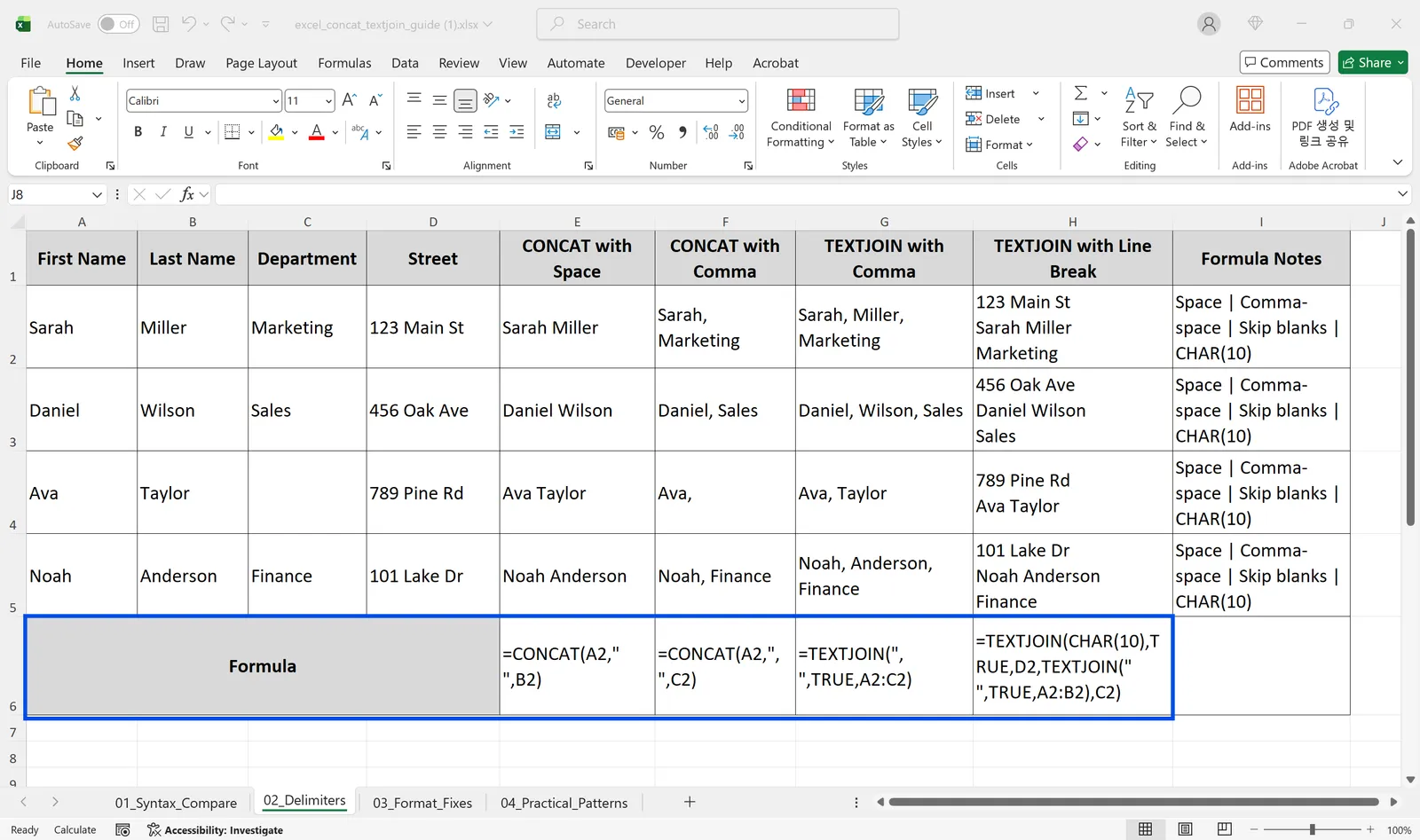
Separators are where most people get tripped up, and each function handles them differently.
With CONCAT, you insert the separator as a literal string between arguments. To put a space between a first and last name, write =CONCAT(A2, " ", B2). To separate a name from a department with a comma, write =CONCAT(A2, ", ", C2).
When you need the same separator across several cells, TEXTJOIN is far more efficient. =TEXTJOIN(", ", TRUE, A2:C2) joins everything from A2 to C2 with a comma and a space, and the TRUE skips any empty cells automatically. Doing the same thing with CONCAT would force you to wrap each cell in an IF to check for blanks, which quickly turns into an unreadable formula.
Need a line break instead? Use CHAR(10) as the delimiter and turn on Wrap Text for the cell. =TEXTJOIN(CHAR(10), TRUE, A2:C2) stacks each piece of an address on its own line inside a single cell.
Why Numbers and Dates Break (and How to Fix Them)
The most jarring surprise with these functions is formatting that suddenly disappears. When you join a date or a number cell with text, the on-screen format vanishes and the raw stored value shows up instead.
A date displayed as 03-01-2024 joins as the serial number 45353. A cell showing 40% joins as 0.4, giving you the awkward Growth rate: 0.4. That happens because Excel stores dates as numbers and percentages as decimals, then applies the cell format only for display.
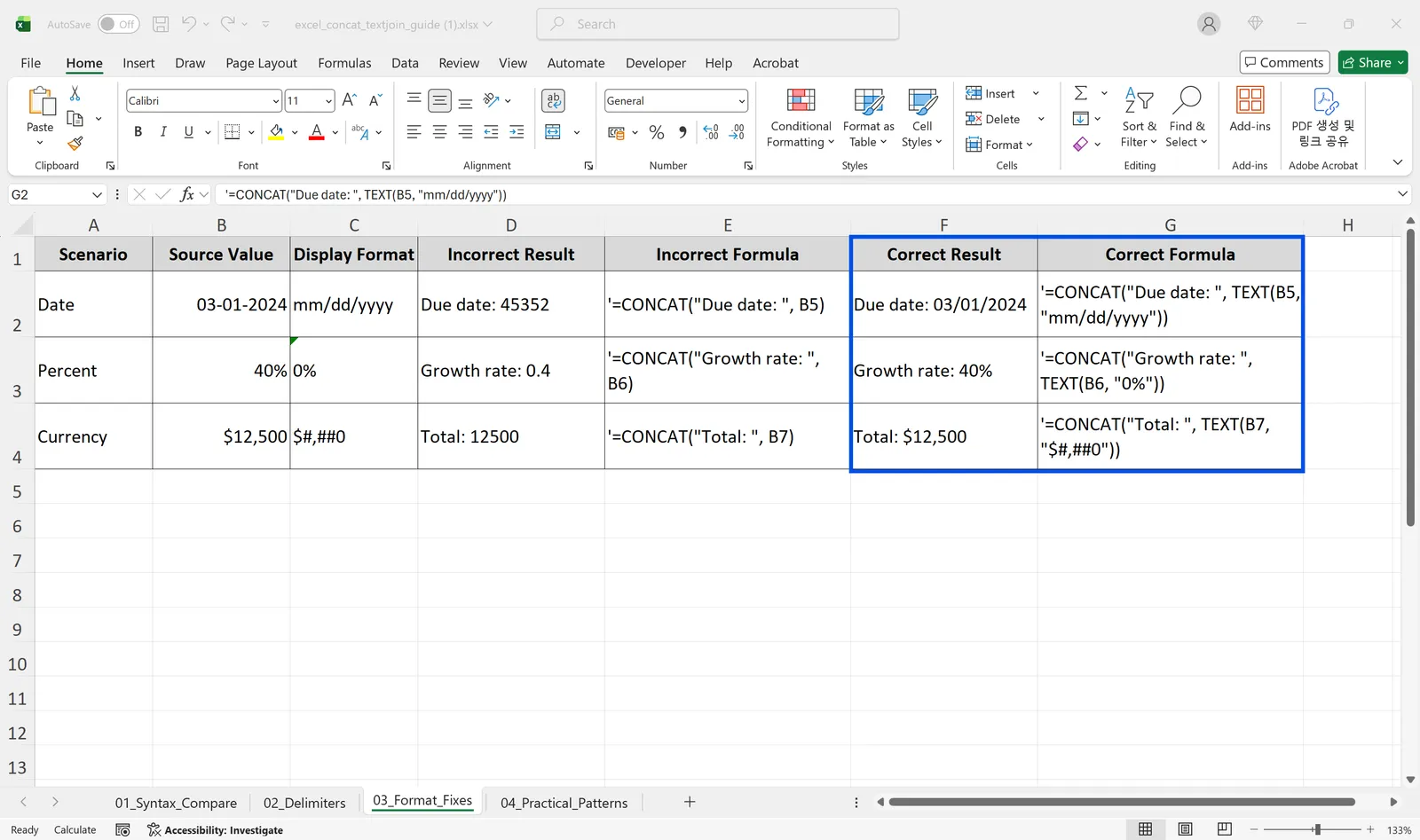
The fix is to convert the value into a formatted string first with the TEXT function, then join it:
- Keep a date format:
=CONCAT("Due date: ", TEXT(A2, "mm/dd/yyyy")) - Keep a percentage format:
=CONCAT("Growth rate: ", TEXT(B2, "0%")) - Keep a currency format:
=CONCAT("Total: ", TEXT(C2, "$#,##0"))
Because TEXT shapes the value before it reaches CONCAT, the result reads exactly the way it looked in the original cell.
Real-World Patterns: Names, Addresses, and Codes
Here are the three patterns you will use again and again.
Combine names
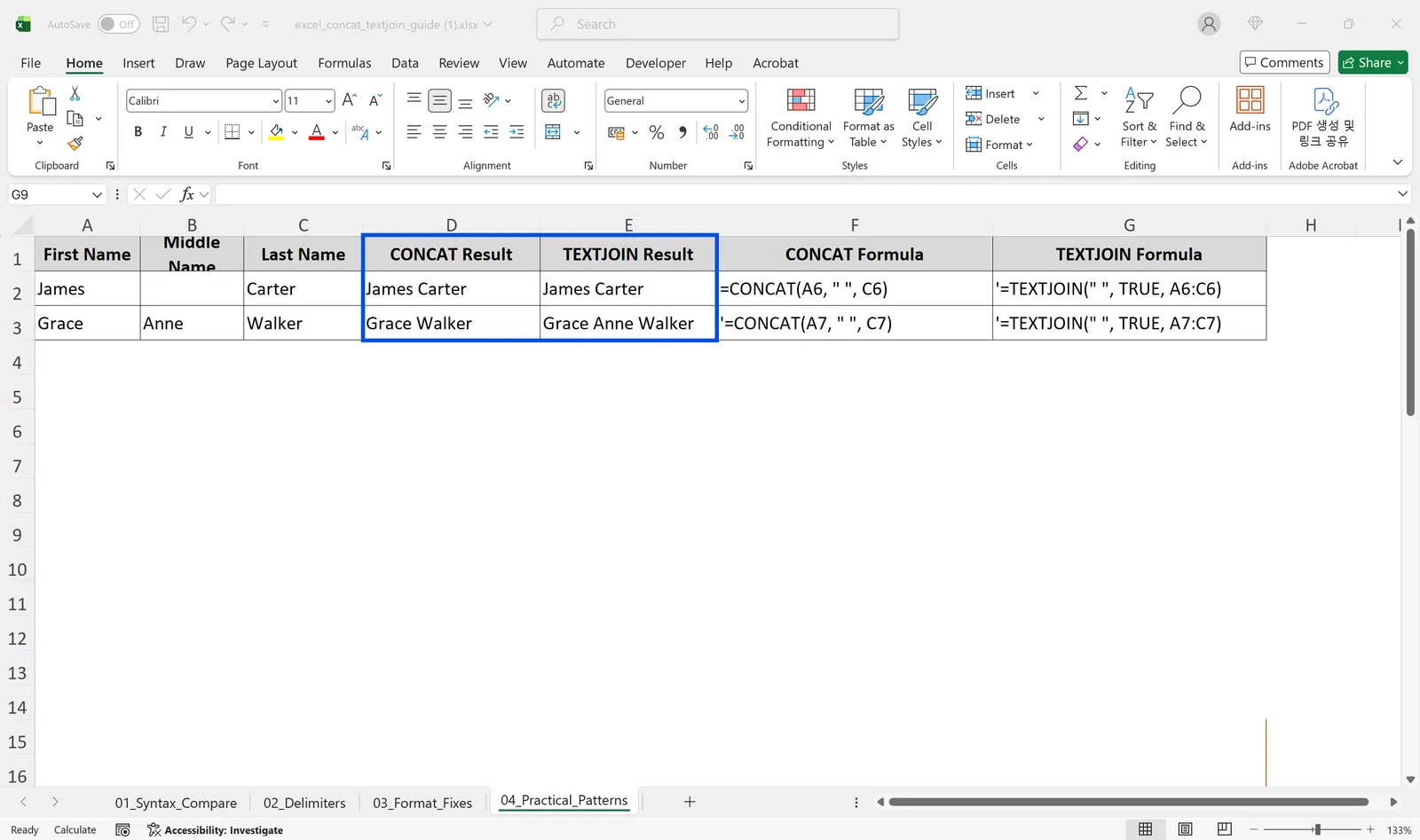
When first and last names are split, =CONCAT(A2, " ", B2) gives you James Carter. If there is a middle name column that is often empty, switch to =TEXTJOIN(" ", TRUE, A2:C2). With ignore_empty set to TRUE, an empty middle name is skipped, so Grace Anne Walker stays clean and you never get a double space. This is the same idea behind combining two columns into one, just extended to as many name parts as you have.
Combine addresses
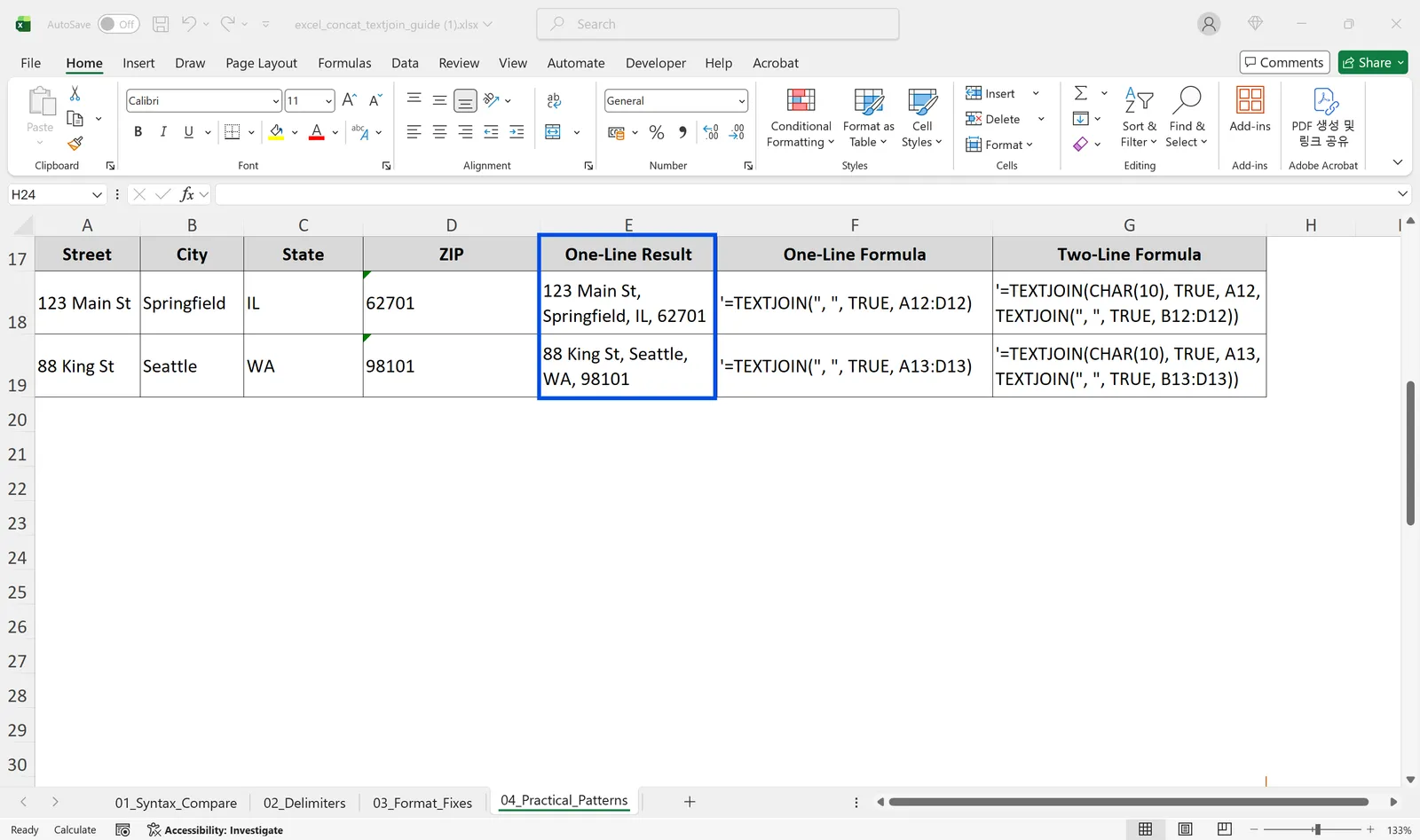
With Street, City, State, and ZIP in separate columns, =TEXTJOIN(", ", TRUE, A2:D2) produces a tidy 123 Main St, Springfield, IL, 62701. For a two-line mailing format, combine =TEXTJOIN(CHAR(10), TRUE, A2:B2) with =TEXTJOIN(", ", TRUE, C2:D2) and allow Wrap Text, so the street sits above the city, state, and ZIP.
Generate codes
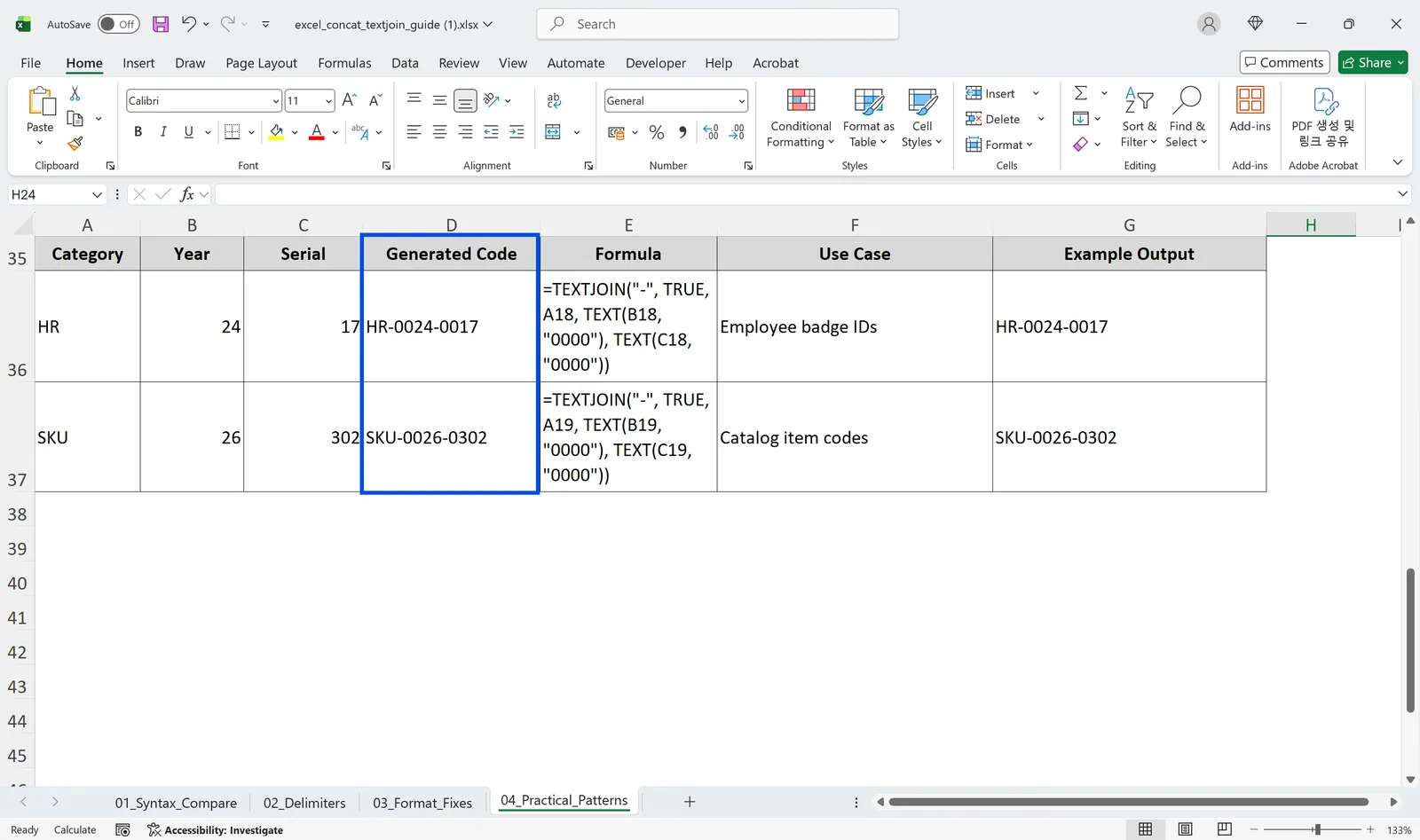
For structured strings like product codes or employee IDs, pair TEXTJOIN with TEXT. For a Category-Year-Serial code with a four-digit serial, =TEXTJOIN("-", TRUE, A2, TEXT(B2, "0000"), TEXT(C2, "0000")) turns HR, 24, and 17 into HR-0024-0017, and SKU, 26, 302 into SKU-0026-0302. The serial is always padded to four digits, and the structure holds up even when the category or year changes.
Frequently Asked Questions
Should I use CONCATENATE or CONCAT?
If you are on Excel 2016 or later, or Microsoft 365, use CONCAT. It accepts ranges directly, and Microsoft recommends it over CONCATENATE. Keep CONCATENATE only when you need compatibility with older versions.
When should I use TEXTJOIN instead of CONCAT?
For a plain join with no separator, CONCAT is enough. As soon as you need the same delimiter across many cells, or you want blank cells skipped automatically, TEXTJOIN is far more efficient. The more cells you join, the bigger the gap in formula complexity.
How do I stop dates from turning into numbers when I combine them?
Convert the date to a formatted string first with TEXT, then join it. =CONCAT("Due date: ", TEXT(A2, "mm/dd/yyyy")) keeps the date exactly as it appeared in the cell.
What is the difference between the & operator and CONCAT?
Functionally they are the same. =A2&" "&B2 and =CONCAT(A2, " ", B2) return identical results. For a few cells, & is more concise. As the number of cells grows or you start using ranges, CONCAT and TEXTJOIN are easier to read and maintain.
Do It All Hands-Free with inline AI
Once you know how to merge cells the right way, the next step is to stop rebuilding the same TEXTJOIN formulas across hundreds of rows every week.
inline AI is a desktop-native AI coworker built specifically for Excel. Just type what you want in plain English, like "combine first and last names into a full name column," and it reads your sheet, writes the formula, and fills it down for you.
It ranked #1 on SpreadsheetBench with 92% accuracy, and it runs locally on your PC, so your data never leaves your machine and nothing is uploaded to the cloud.
Stop wiring up text formulas by hand and let inline AI handle the repetitive work, so you can focus on the analysis that actually matters.
Download your AI Coworker for Excel