Blog
Excel Date Format Not Changing? Fix Serial Numbers, Text Dates, and DATEDIF
 Mike Yi · Jul 22, 2026
You typed a date into Excel and a number showed up instead. Or a date refuses to calculate correctly, or sorts in an order that makes no sense. None of this is random, and once you understand what Excel is actually doing under the hood, every one of these problems has a fast, repeatable fix.
This guide covers why Excel stores dates as numbers in the first place, how to change the date format, how to convert text-stored dates into real dates, how to calculate the difference between two dates, and why date sorting breaks.
Why Excel Shows a Number Instead of a Date
How Excel Stores Dates as Serial Numbers
If a cell shows a number instead of a date, Excel has actually recognized the value as a date correctly, it is just displayed with a General or Number format instead of a Date format.
Internally, Excel stores every date as a serial number counting up from January 1, 1900 (which equals 1), adding one for each day that passes. June 15, 2025, for example, is stored internally as 45823.
Restoring the Date Display with Cell Formatting

- Select the cell showing the number and press
Ctrl+1to open Format Cells. - Choose Date from the Category list on the left, and a range of formats appears on the right.
- Pick a format and click OK. The number becomes a readable date.
In the example, the same serial number 45823 displays as 45823 under General or Number format, but becomes 06-15-2025, 2025-06-15, or 15-Jun-25 depending on which date format you apply. If changing the format does not fix it, the value is likely stored as text instead, which the next section covers.
Changing the Date Format: Cell Formatting vs. TEXT
Changing the Display with Cell Formatting
The most basic way to change how a date looks is Format Cells. Select the date cells, press Ctrl+1, and pick a format from the Date category. Common ones include:
yyyy-mm-dd→ 2025-06-15mm/dd/yyyy→ 06/15/2025d-mmm-yy→ 15-Jun-25
This only changes the display. The underlying serial number stays exactly the same, so you can apply it across a whole range at once without touching the actual values.
Using TEXT to Output a Formatted String

TEXT converts a date into a text string, which is useful when you want to combine it with other text or lock in a specific format regardless of regional settings.
=TEXT(A3,"mmmm d, yyyy")
In the example, 01-07-2025 becomes January 7, 2025, 03-15-2025 becomes March 15, 2025, and so on down the column. The catch is that the output of TEXT is a text string, not a real date, so it cannot be used in date calculations afterward. Keep a separate column for calculation and one for display.
For more on combining formatted values with other text, see how to combine two columns in Excel.
Converting Text-Stored Dates into Real Dates
Why Dates End Up Stored as Text
Dates imported from a CSV, pasted from another system, or typed without separators (like 20250615) often get stored as text instead of a real date. A green triangle in the top-left corner of the cell, or a value that is left-aligned instead of right-aligned, is a strong sign that a date is actually text. Until it is converted, it cannot be used in date math and will not sort correctly.
Using DATEVALUE
DATEVALUE converts a text string that looks like a date into a real date serial number, and it is usually the first thing to try.
=DATEVALUE(A2)
If A2 holds a text value like "2025-06-15", this converts it into the corresponding serial number. Apply a Date format afterward and it displays as a normal date.
Converting a Whole Column at Once with Text to Columns
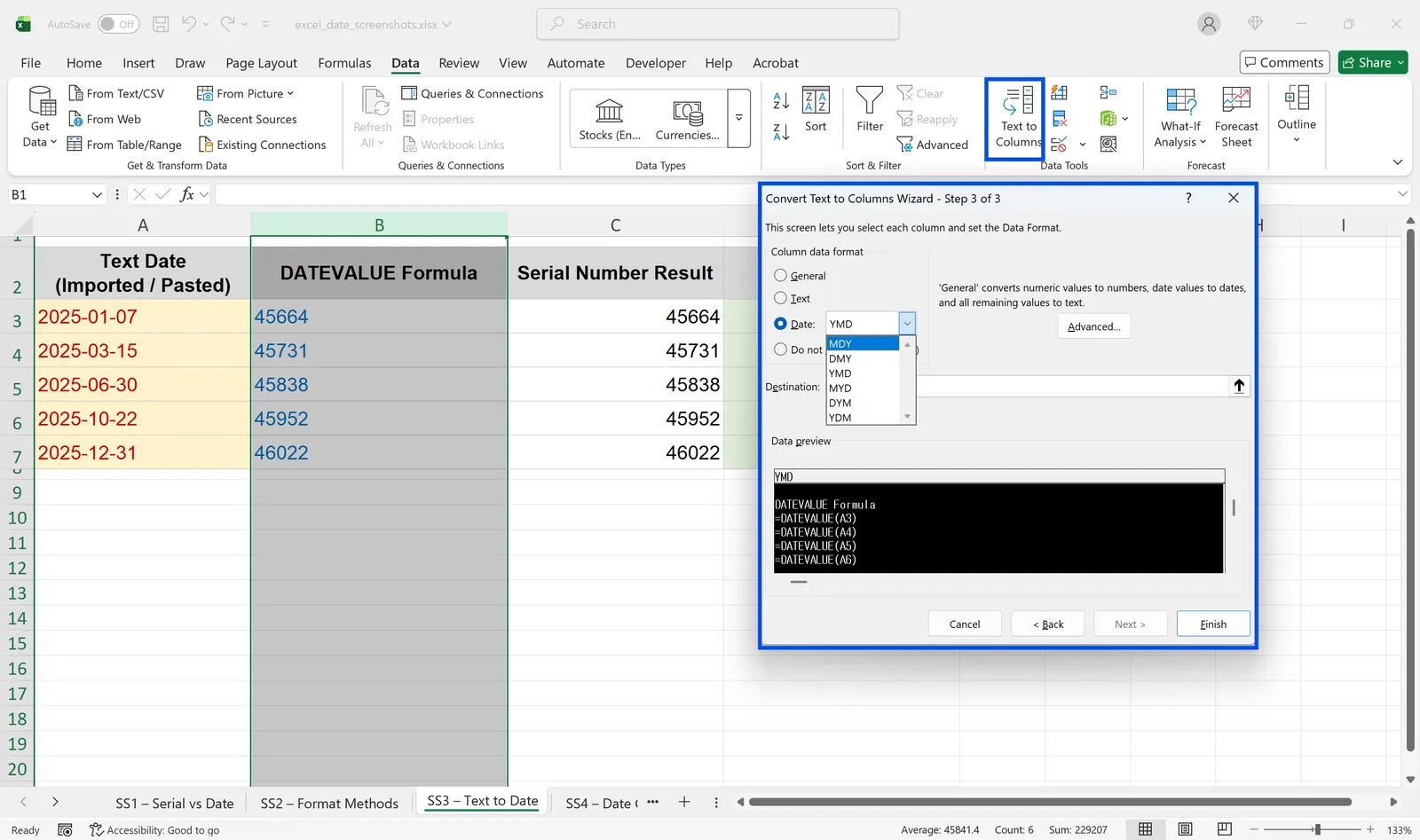
If DATEVALUE does not work, or the dates are formatted without separators like 20250615, use Text to Columns instead:
- Select the column, go to the Data tab, and click Text to Columns.
- On step 3 of the wizard, set the column data format to Date, then click Finish.
In the example, text dates like 2025-01-07 convert to the serial number 45664, 2025-03-15 to 45731, and so on, matching exactly what DATEVALUE would return, just applied to the whole column at once.
Calculating the Difference Between Two Dates
Days Between Two Dates
The simplest date calculation in Excel is subtracting one date from another.
=B2-A2
The result is the number of days between the two dates. If the cell is formatted as a date, switch it back to a number format to see the day count. DAYS(B2, A2) returns the same result.
Months and Years with DATEDIF

DATEDIF breaks the difference between two dates down into days, months, or years. It does not show up in the autocomplete list, but it works fine when typed manually.
=DATEDIF(start_date, end_date, unit)
Unit options are:
"D": total days"M": total months"Y": total years"MD": remaining days, ignoring years and months"YM": remaining months, ignoring years
In the example, Sarah Mitchell's range from 03-10-2022 to 09-10-2025 returns 1,280 days, 42 months, and 3 years. James Parker's five-year span returns 1,826 days and 60 months. Entering =DATEDIF(A2,B2,"M") returns the number of months between the two dates.
Auto-Calculating Time Remaining from Today
Putting TODAY() in the end-date position calculates automatically against the current date. =DATEDIF(A2,TODAY(),"Y") gives you an age or tenure in years, while =B2-TODAY() counts down the days left until a deadline. In the example, Sarah Mitchell's review is -198 days out (198 days past due), while Emily Chen's is 49 days away and Olivia Thompson's is 12 days out. Since TODAY() refreshes every time the file opens, the countdown never needs manual updating.
Why Date Sorting Breaks
The Root Cause of Broken Date Sorting
If a date column sorts into a seemingly random order, it is almost always because text-stored and real date values are mixed in the same column. Excel sorts text and numbers (dates included) separately, so a column with both formats never sorts the way you expect. Left-aligned values are text, right-aligned ones are real dates, and a green triangle is another sign of text storage.
The Fix, Step by Step
- Select the whole column and check for text-stored dates: left-aligned cells or ones with a green triangle.
- Convert those text dates into real dates using
DATEVALUEor Text to Columns. - Apply the same date format across the entire column.
- Sort again. The dates now fall into the correct order.
Date-based calculations and filters follow the same logic, so if either one misbehaves, checking for mixed formats is the first place to look. Sorting issues elsewhere in a sheet are worth a look too, covered in this guide to fixing data that will not sort in Excel.
Frequently Asked Questions
Why does my date change into a different number automatically?
When Excel recognizes an entry as a date, it stores it internally as a serial number. If the cell's format is set to General or Number, that serial number is what displays instead of the date. Select the cell, press Ctrl+1, choose Date from the category list, and confirm to restore the normal date display.
Why doesn't DATEDIF show up in autocomplete?
DATEDIF is a legacy function kept for compatibility with older Lotus 1-2-3 spreadsheets, so it is not listed among Excel's official functions. It will not autocomplete, but typing =DATEDIF() directly works fine. Enter the arguments in order: start date, end date, then unit ("D", "M", or "Y").
Why does the same file show different date formats on different computers?
Some of Excel's date display formats follow the Windows region and language settings. Opening the same file on a computer with different regional settings can change how dates display. To lock a format regardless of the machine, use the TEXT function, or open Format Cells with Ctrl+1 and enter a custom format like yyyy-mm-dd directly.
Dates Get Easier with inline AI

Once you know why a date shows the wrong number or refuses to sort, the next step is to stop re-checking DATEDIF syntax and converting text dates one by one, every single time a new file lands on your desk.
inline AI is the first local AI agent that works directly on top of your Excel and document files. Ask in plain English, like "convert this column to real dates and calculate months between them," and it reads the file, applies the right formula, and hands you the result in real time.
Because it runs locally on your PC with nothing uploaded to the cloud, even sensitive data stays on your machine.
Let inline AI handle the repetitive date cleanup so you can spend your time on the analysis those dates were meant for.
Download your AI Coworker for Excel