Blog
How to Sort in Excel the Right Way: Common Reasons Your Data Gets Scrambled
 Sik Yang · Feb 19, 2026
Sorting is one of the easiest ways to damage an Excel file. The problem is not the Sort button itself. The problem is sorting only part of a record, or asking Excel to guess the data range when the sheet structure is messy.
A row is a record. When one column moves, the rest of that row must move with it.
Why Sorting One Column Scrambles Data
If names are in column A, departments in column B, and scores in column C, those values belong together. Sorting only column A breaks that relationship.
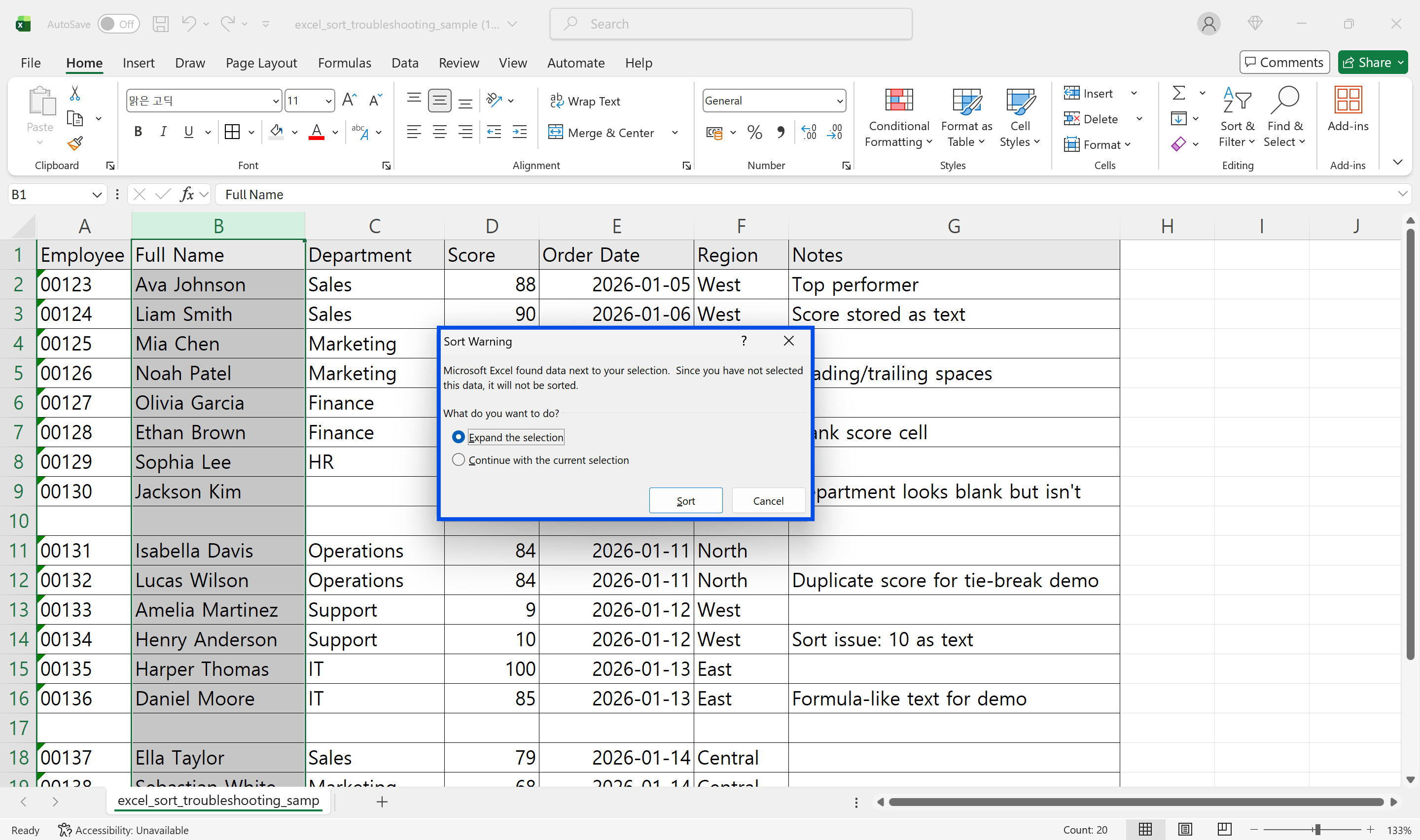
When Excel asks whether to Expand the selection, choose Expand the selection. Continuing with the current selection is how names end up paired with the wrong scores.
Merged Cells Break Sorting
Merged cells make the grid uneven. Excel expects each row in the sort range to have the same shape. If some cells are merged and others are not, sorting may fail or produce incorrect results.
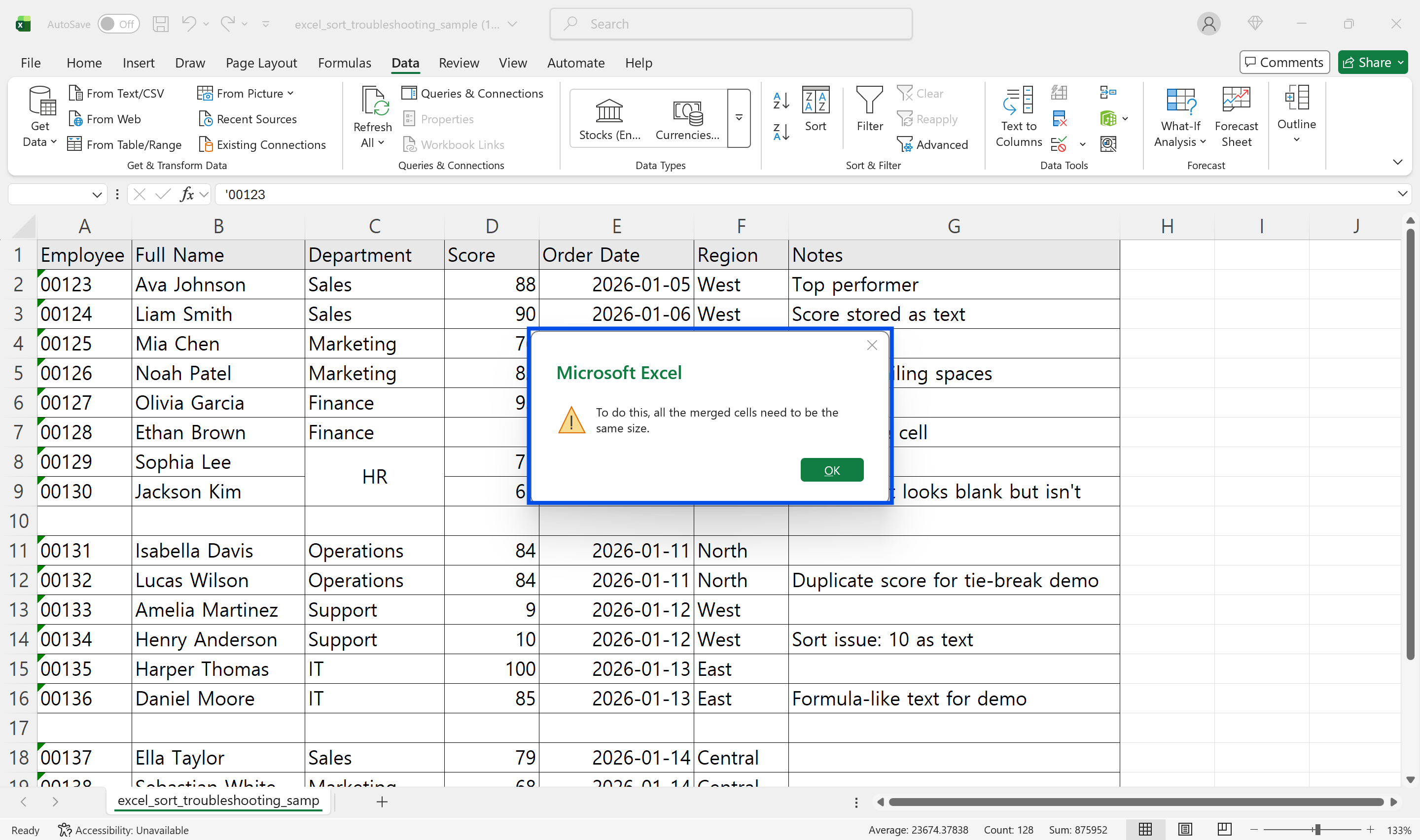
Before sorting raw data, unmerge cells and fill the resulting blanks. Use merged cells only in presentation sheets, not source data sheets.
Blank Rows and Columns Split the Range
Excel detects continuous blocks of data. A fully blank row or column can make Excel think the table ends there. The result is that only the top block gets sorted while the rest stays in place.
Select the full table manually, including headers, before sorting. Remove unnecessary blank rows and standardize number and date formats first.
Sorting with Filters On
When filters are active, Excel may sort only visible rows. Hidden rows keep their original relative position, which can look wrong when the filter is cleared.
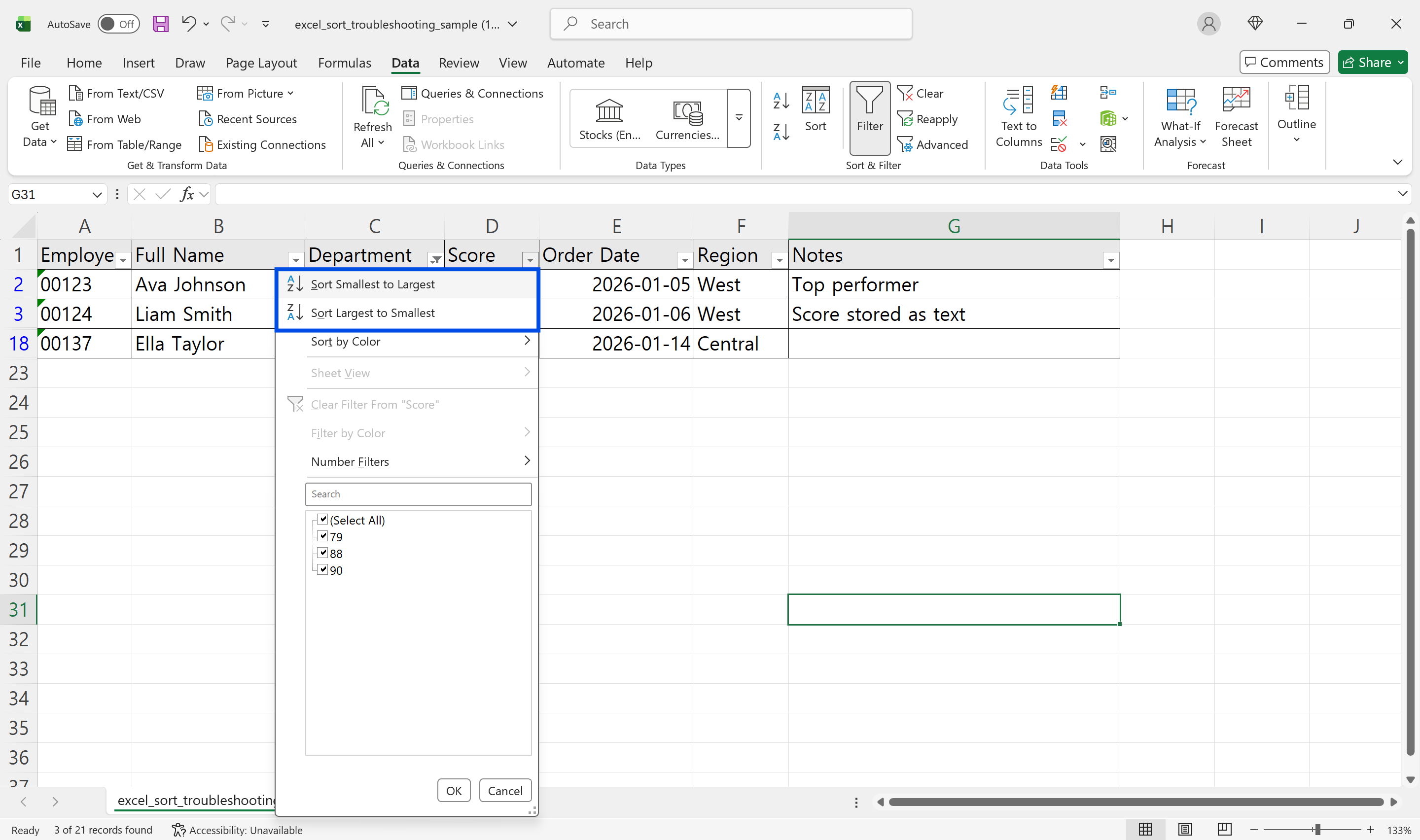
Sort with filters cleared when you want to reorganize the source data. Sort inside a filtered view only when you intentionally want to order the visible subset.
Pre-Sort Checklist
Check that the full table is selected, headers are identified correctly, merged cells are removed, blank rows are handled, mixed data types are standardized, and filter behavior is intentional. This short checklist prevents most sorting disasters.
Automate Excel Sorting Work with inline AI

Once you understand how to sort in Excel safely, the next step is automating the checklist before your data gets scrambled. Wouldn't it be easier to detect merged cells, mixed ranges, and header issues before sorting?
inline AI is a local agent that works directly inside Excel. Ask in natural language, such as sort this table by customer name and keep each row intact, and it can read and edit your Excel file in real time.
Because it runs locally on your PC without uploading your data to the cloud, it can handle sensitive spreadsheets more safely. Download it today and experience the future of Excel work yourself.
Download your AI Coworker for Excel