Blog
How to Unhide All Columns in Excel: Fix Column Width 0 and Protected Sheet Issues
 Sik Yang · Feb 15, 2026
Sometimes selecting the entire sheet and choosing Unhide Columns does not bring your columns back. That is because Excel has more than one way for a column to disappear. A column can be hidden, its width can be set to zero, or sheet protection can prevent changes.
This checklist helps you diagnose the exact cause.
Why Unhide Columns Does Not Always Work
Excel treats hidden columns and zero-width columns differently. The Unhide command works for truly hidden columns, but it may not restore a column whose width was manually set to 0.
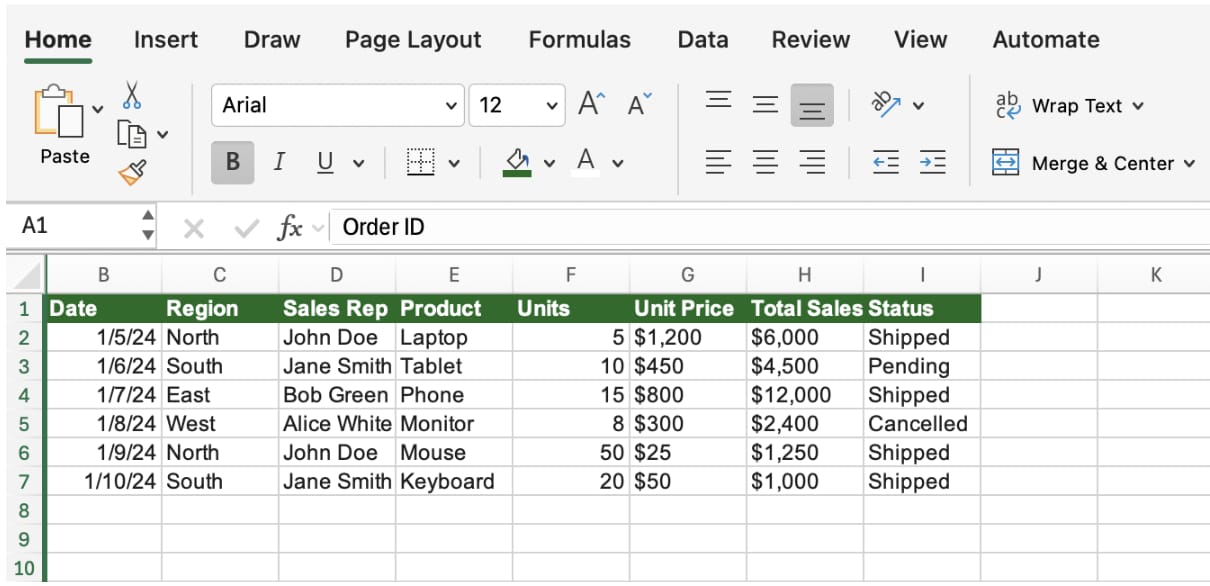
Unhide can also fail if the sheet is protected, if the selected range does not include the hidden columns, or if the hidden columns are not contiguous.
Restore Column Width Manually
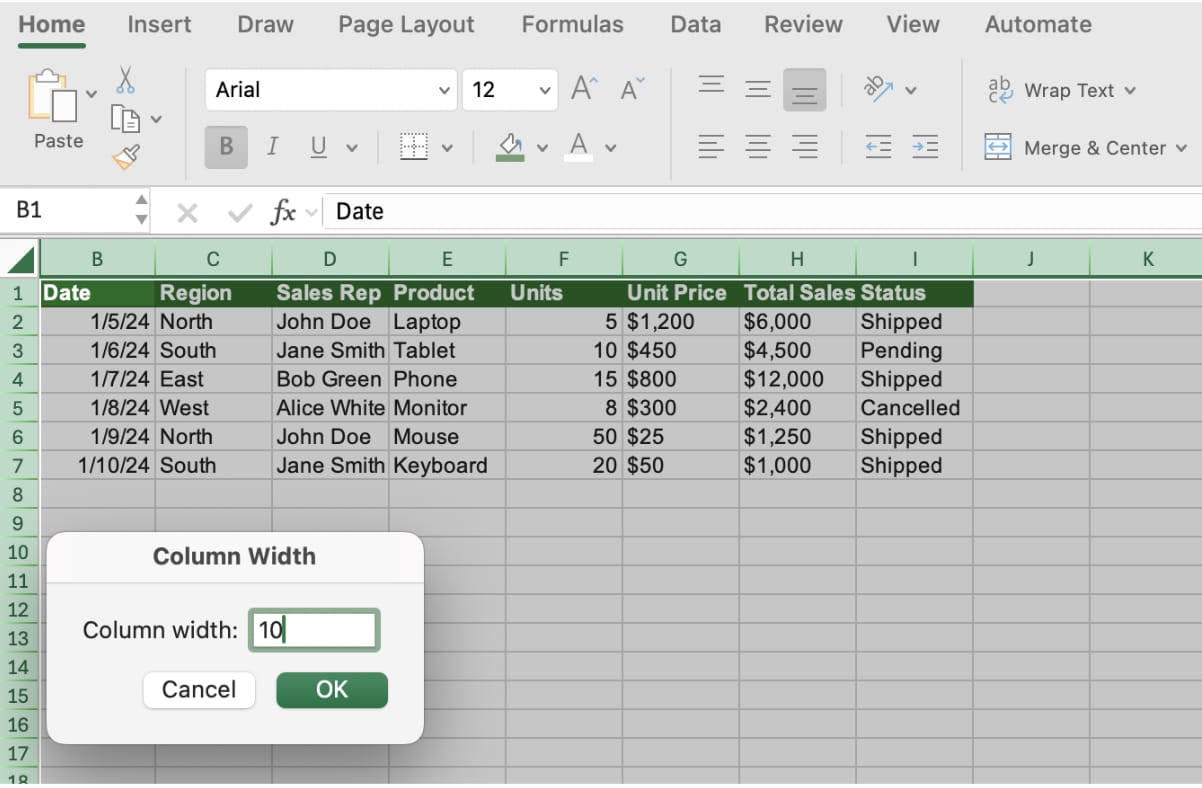
The fastest fix is to select the entire sheet and assign a column width directly.
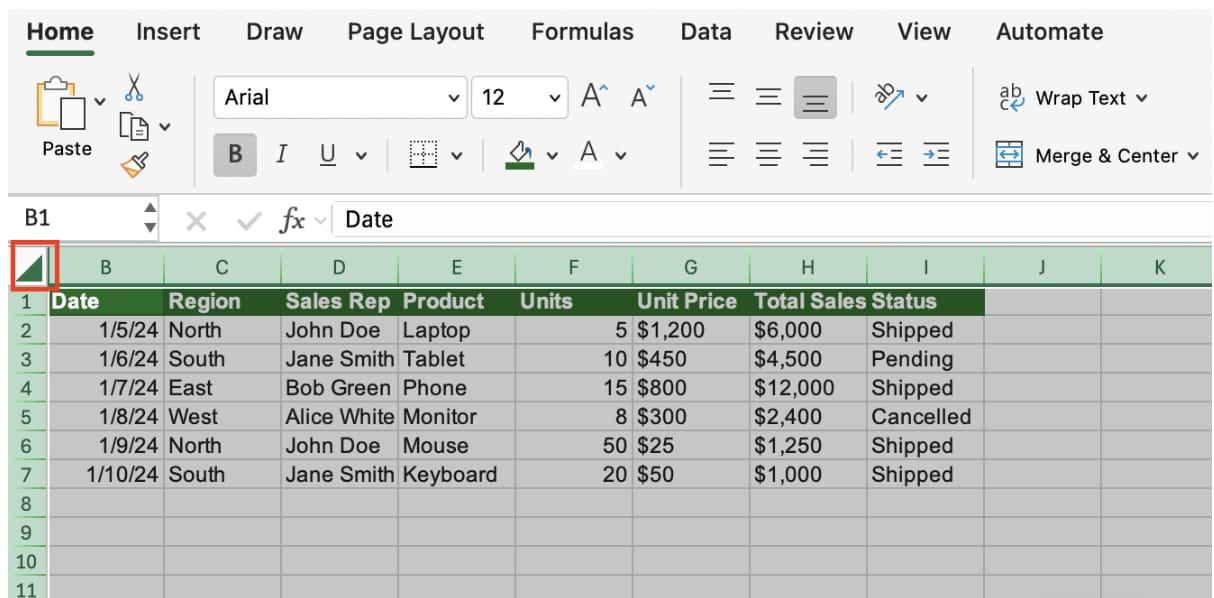
Select the whole worksheet, right-click any column header, choose Column Width, and enter a value such as 8.43 or 10. This restores columns that looked missing because their width was zero.
Unhide Multiple Columns
If columns are truly hidden, select the column before and after the hidden range. Then right-click and choose Unhide.
For example, if columns C through E are hidden, select columns B and F together before choosing Unhide.
Check Sheet Protection
Protected sheets may block structural changes such as hiding, unhiding, and resizing columns. If the Unhide option is disabled or nothing changes, go to Review and check whether the sheet is protected.
If you know the password, unprotect the sheet first. If you do not, ask the file owner for access.
Practical Recovery Order
Use this order when columns will not appear: select the whole sheet, set column width manually, unhide columns by selecting adjacent headers, then check sheet protection. This sequence solves most real-world cases without guessing.
Make Excel Unhide Checks Easier with inline AI

Once you know how to unhide all columns in Excel, the next step is automating the recovery checklist. Wouldn't it be easier if you did not have to inspect width, filters, protection, and grouping by hand every time?
inline AI is a local agent that works directly inside Excel. Ask in natural language, such as find why columns are not visible in this sheet, and it can read and edit your Excel file in real time.
Because it runs locally on your PC without uploading your data to the cloud, it can handle sensitive spreadsheets more safely. Download it today and experience the future of Excel work yourself.
Download your AI Coworker for Excel