Blog
The Complete Guide to Moving Columns in Excel Without Overwriting Data
 Sik Yang · Feb 19, 2026
Moving columns in Excel is common, but dragging a column the wrong way can overwrite existing data or break formulas. Excel is a grid, not a word processor. When you move a column onto another column, Excel may replace the destination instead of inserting between columns.
The safe approach is to use insertion, not overwriting.
Why Dragging Columns Can Overwrite Data
A normal drag tells Excel to move the selected cells to a new location. If the destination already contains data, Excel may warn you that data exists there. Accepting that warning can replace the destination data.
This is dangerous in large sheets because you may not see hidden rows, notes, or formulas below the visible area.
Method 1: Shift + Drag
The most practical method is Shift + drag. Select the column header, move the cursor to the border, hold Shift, and drag to the new position. Release the mouse when the thick insertion line appears.
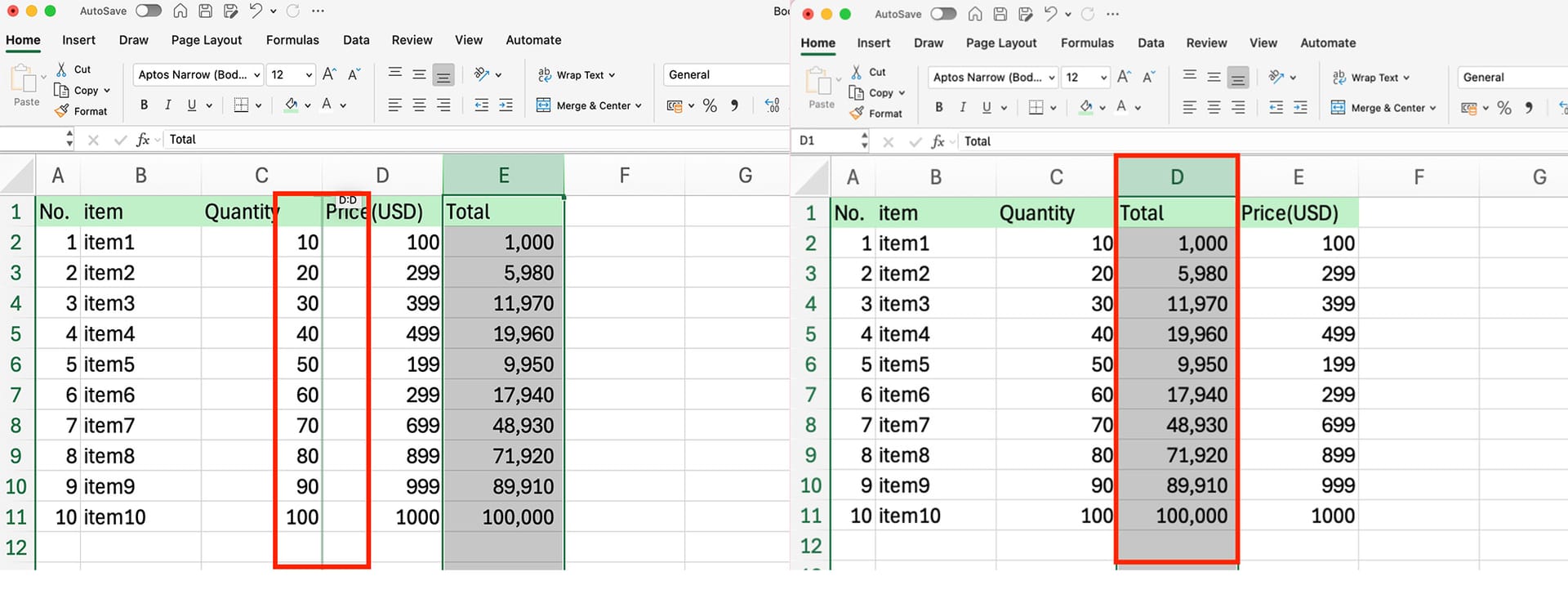
Holding Shift tells Excel to insert the column into the new position rather than overwrite existing data.
Method 2: Insert Cut Cells
For maximum safety, use the menu command. Select the column, press Ctrl+X, right-click the destination column header, and choose Insert Cut Cells.
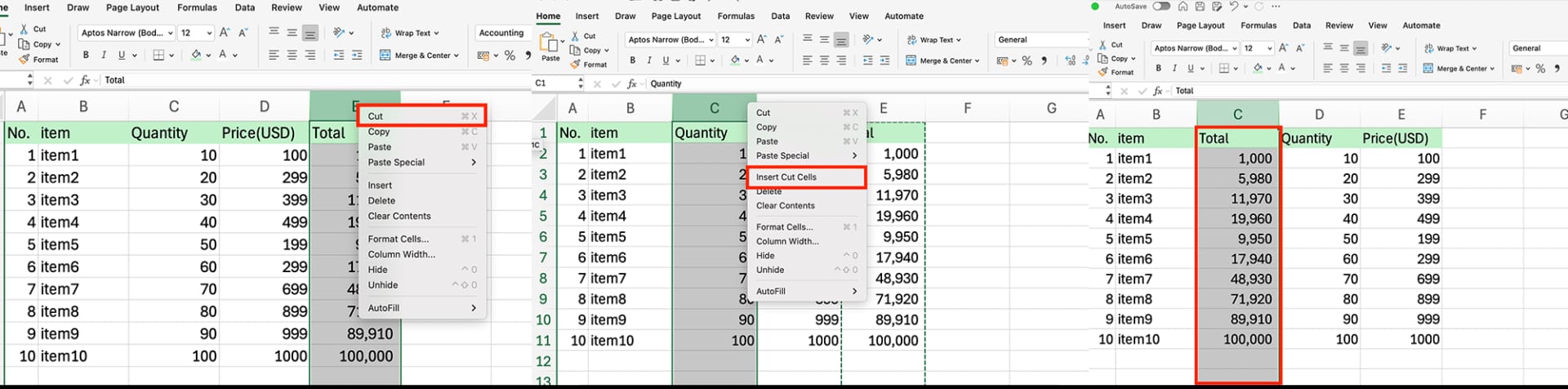
This inserts the moved column and shifts neighboring columns automatically.
Formula Risks
Formulas can break when referenced cells are overwritten or deleted. A #REF! error means Excel can no longer find the referenced cell.
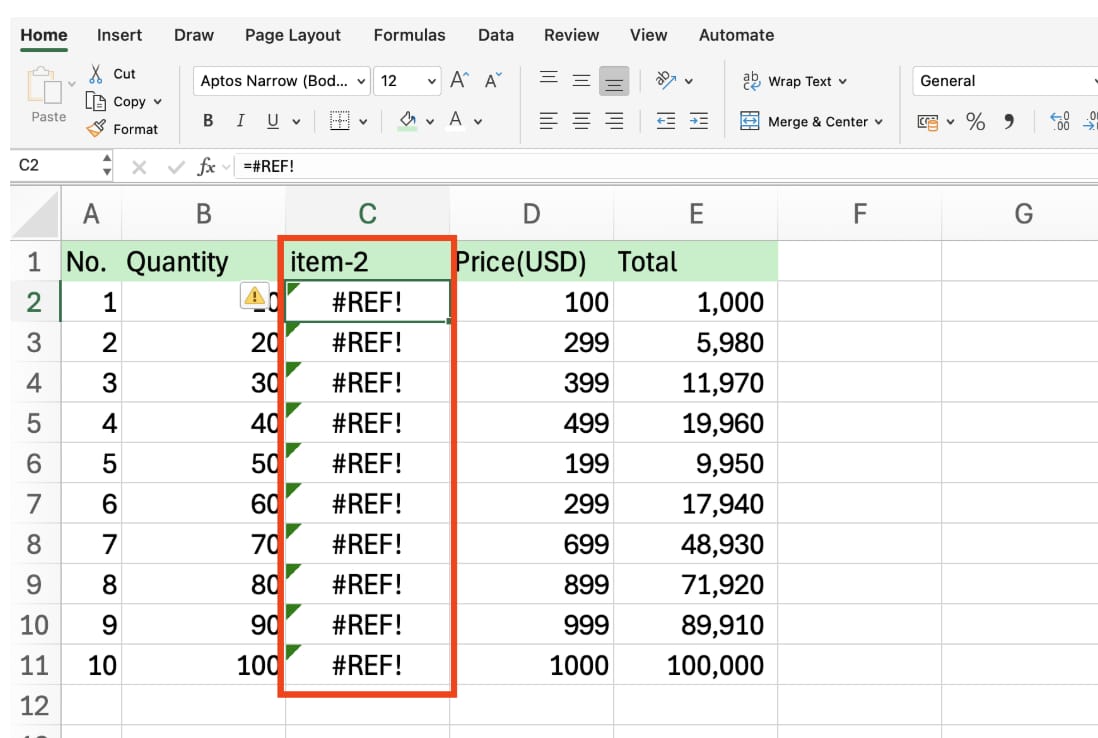
Insertion methods usually preserve references better than overwrite methods, but formulas with fixed column numbers, such as some VLOOKUP formulas, may still need review.
Before Reordering Columns
Back up the file, check for merged cells, unhide rows and columns, and verify key totals after moving columns. If the sheet is protected or formatted as a Table, you may need to adjust those settings before moving columns.
Practical Rule
Use Shift + drag for quick manual work. Use Insert Cut Cells when accuracy matters. Do not use normal drag when the destination contains important data.
Move and Reorder Excel Columns Faster with inline AI
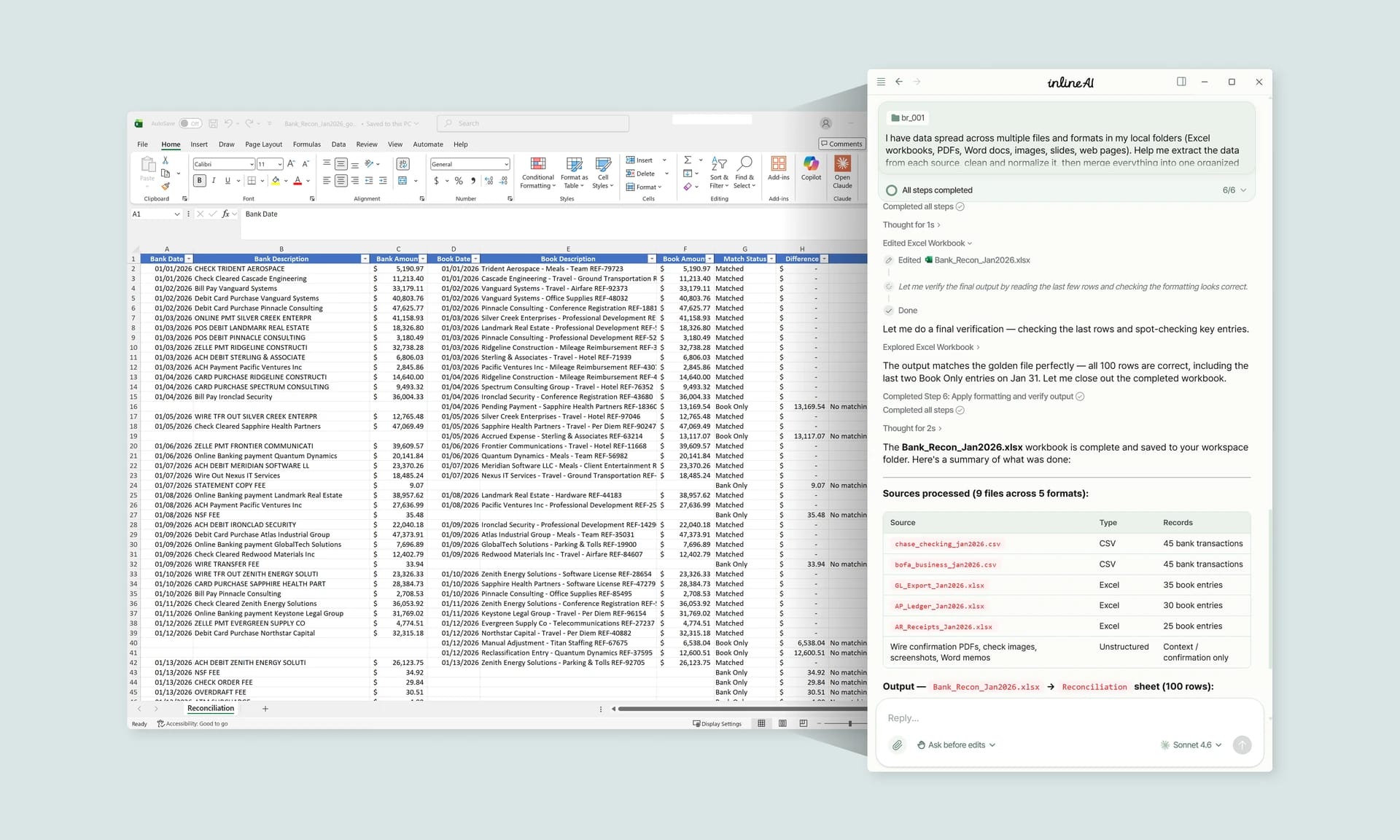
Once you know how to move columns in Excel without overwriting data, the next step is automating the repetitive layout work. Wouldn't it be easier to reorganize columns for reporting without dragging them one by one?
inline AI is a local agent that works directly inside Excel. Ask in natural language, such as move these columns into reporting order, and it can read and edit your Excel file in real time.
Because it runs locally on your PC without uploading your data to the cloud, it can handle sensitive spreadsheets more safely. Download it today and experience the future of Excel work yourself.
Download your AI Coworker for Excel