Blog
How to Insert a Checkbox in Excel: From the Developer Tab to Real-World Uses
 Sik Yang · Feb 26, 2026
Checkboxes make Excel useful for task lists, approval flows, and status tracking. The confusing part is that older Excel versions hide checkboxes inside the Developer tab, so many users cannot find them at first.
Once you know where they live, the setup is straightforward.
Enable the Developer Tab
Go to File > Options > Customize Ribbon. In the right-hand list, check Developer and click OK.
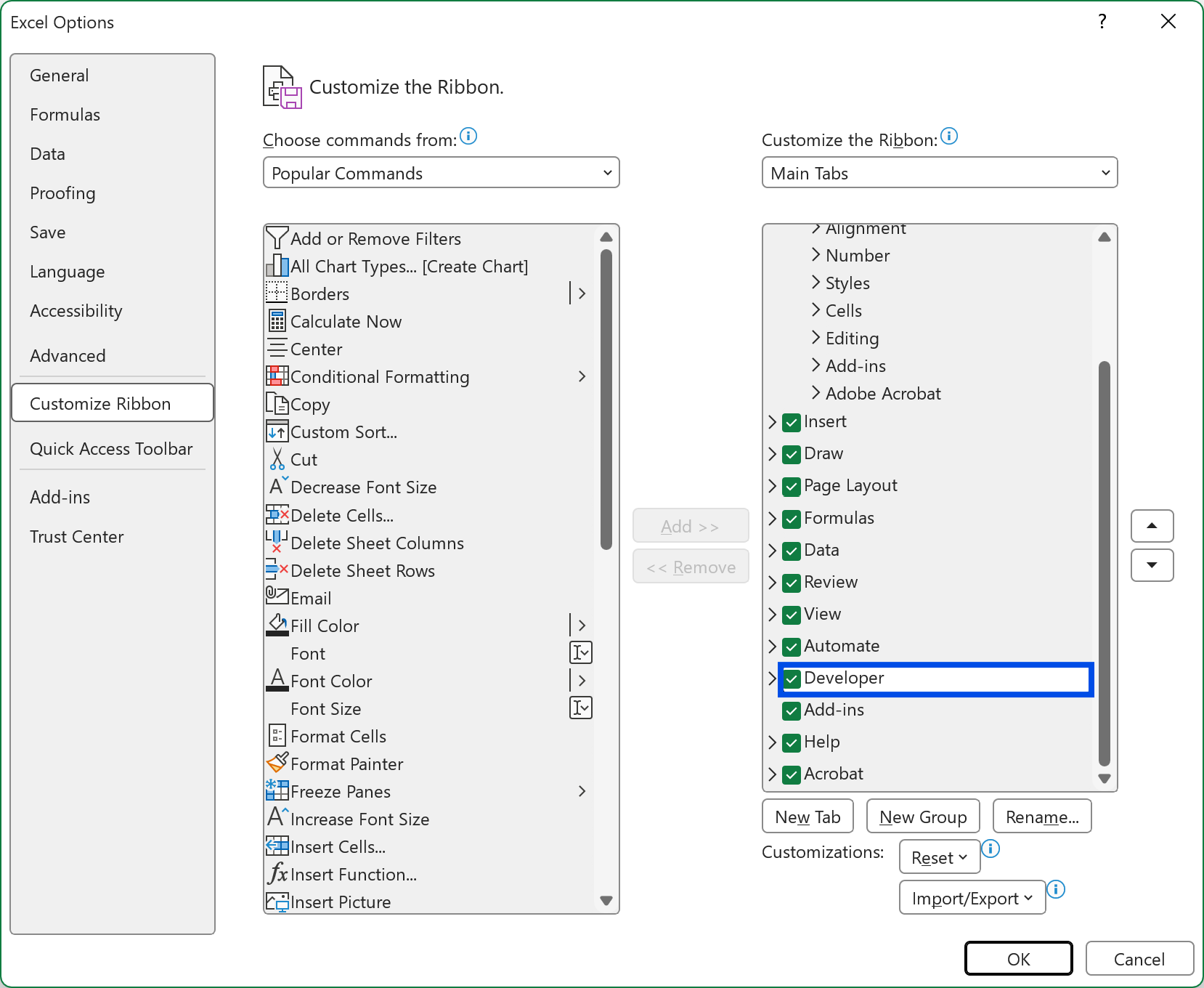
The Developer tab contains Form Controls and ActiveX Controls. For most business files, Form Controls are the safer choice because they are simpler and more compatible.
Insert a Form Control Checkbox
Go to Developer > Insert and choose the checkbox icon under Form Controls. Click or drag on the worksheet to place it. Right-click the checkbox and use Edit Text to change or remove the label.
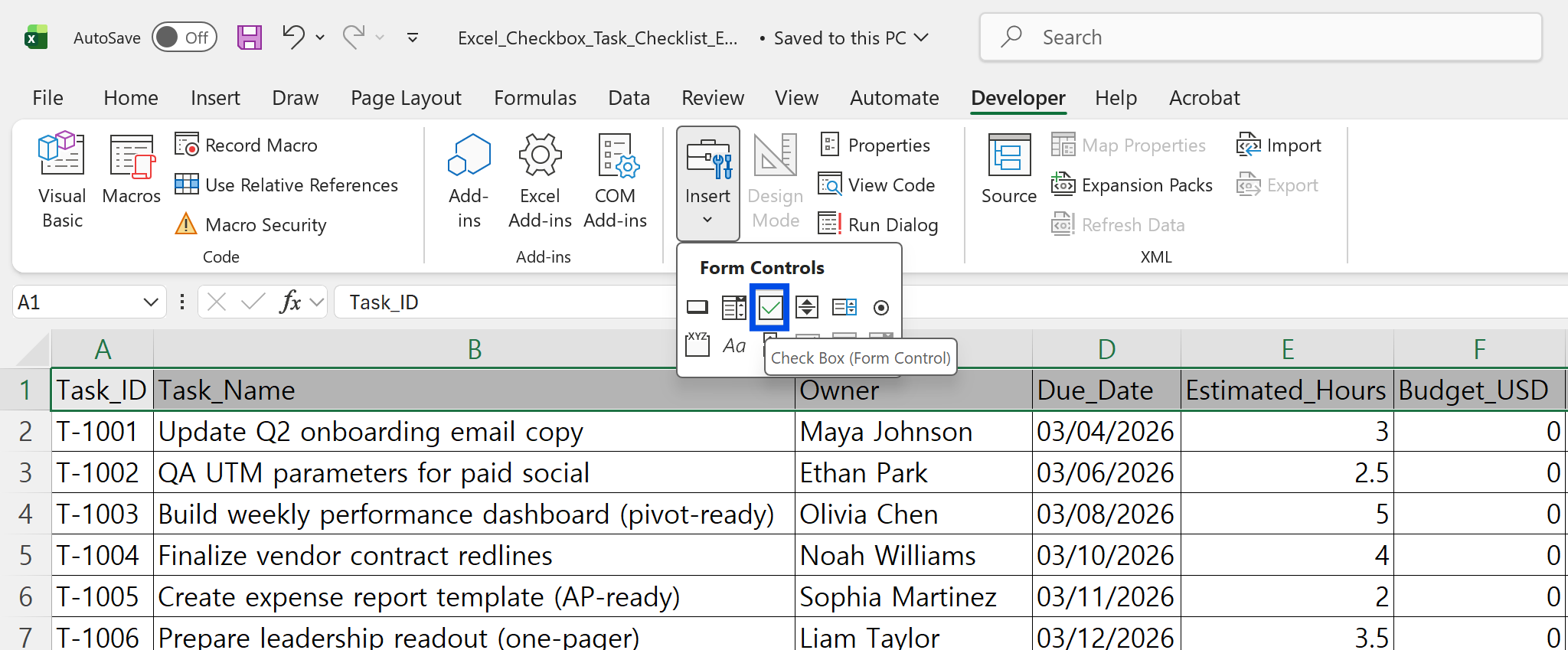
To create multiple checkboxes, copy and paste an existing one.
Link a Checkbox to a Cell
A checkbox is only useful as data after it is linked to a cell. Right-click the checkbox, choose Format Control, open the Control tab, and set Cell link to a cell such as C2.
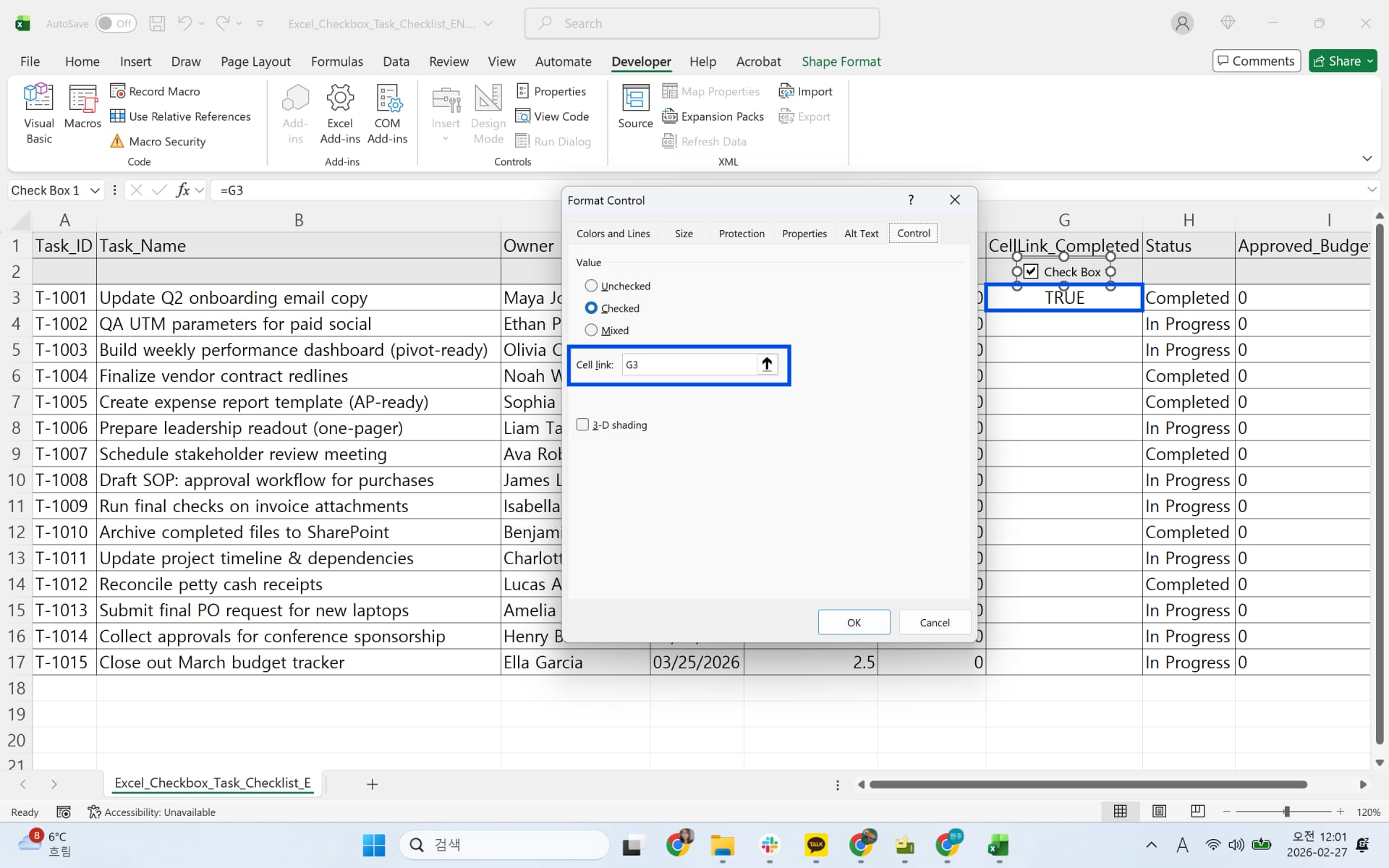
When checked, the linked cell shows TRUE. When unchecked, it shows FALSE.
Use Checkboxes with Formulas
You can use the linked TRUE or FALSE value in formulas. For example, =IF(C2,"Done","In Progress") changes status text automatically.
To sum only checked rows, use a formula such as =SUMPRODUCT((C2:C10)*B2:B10). TRUE acts like 1 and FALSE acts like 0.
Practical Uses
For task tracking, create columns for task, owner, due date, checkbox, and status. Use conditional formatting to gray out completed rows.
For approvals, create separate checkboxes for first review, second review, and final sign-off. COUNTIF can count completed stages, and formulas can total only approved amounts.
FAQ
If a checkbox is not clickable, check whether Design Mode is active or whether you selected an ActiveX control. To delete a checkbox, select the object border and press Delete. New Microsoft 365 versions also offer native checkboxes from the Insert tab.
Make Excel Checkbox Work Easier with inline AI
Once you know how to insert checkboxes in Excel, the next step is reducing the repetitive setup around task lists and review sheets. Wouldn't it be easier to create checkbox-driven trackers without manually linking every control?
inline AI is a local agent that works directly inside Excel. Ask in natural language, such as add checkboxes for this approval checklist, and it can read and edit your Excel file in real time.
Because it runs locally on your PC without uploading your data to the cloud, it can handle sensitive spreadsheets more safely. Download it today and experience the future of Excel work yourself.
Download your AI Coworker for Excel