Blog
How to Hide Columns and Rows in Excel: Unhide, Filters, and Real-World Tips
 Sik Yang · Feb 12, 2026
Hiding rows and columns in Excel looks simple, but it can create real problems if you do not understand what Excel is doing. Hidden data is not deleted. It still exists, formulas can still reference it, and copying ranges may still include it.
This guide explains how hiding works, how to unhide data, and when hiding is safe to use.
What Hiding Actually Does
When you hide a row or column, Excel sets the row height or column width to zero. The values, formulas, formatting, and references remain in the workbook.
If row numbers jump from 2 to 5, rows 3 and 4 are hidden. If column letters jump from B to E, columns C and D are hidden.
How to Hide Rows or Columns
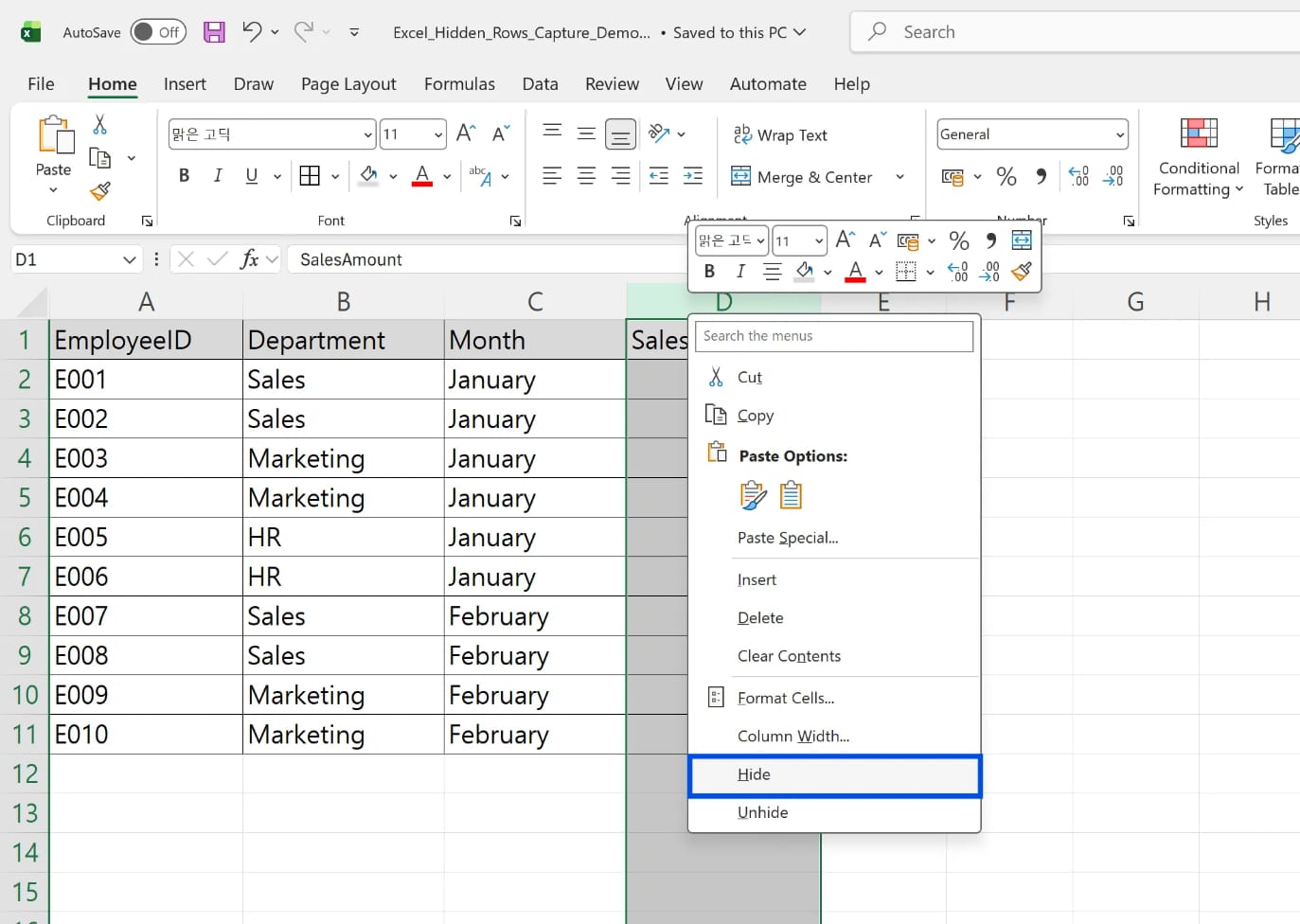
To hide rows, select the row numbers, right-click, and choose Hide. You can also use Home > Format > Hide & Unhide > Hide Rows. The shortcut for hiding rows is Ctrl+9.
To hide columns, select the column headers, right-click, and choose Hide. The shortcut for hiding columns is Ctrl+0.
These methods are useful when you need more screen space or want to prepare a cleaner view for printing or review.
How to Unhide Rows and Columns
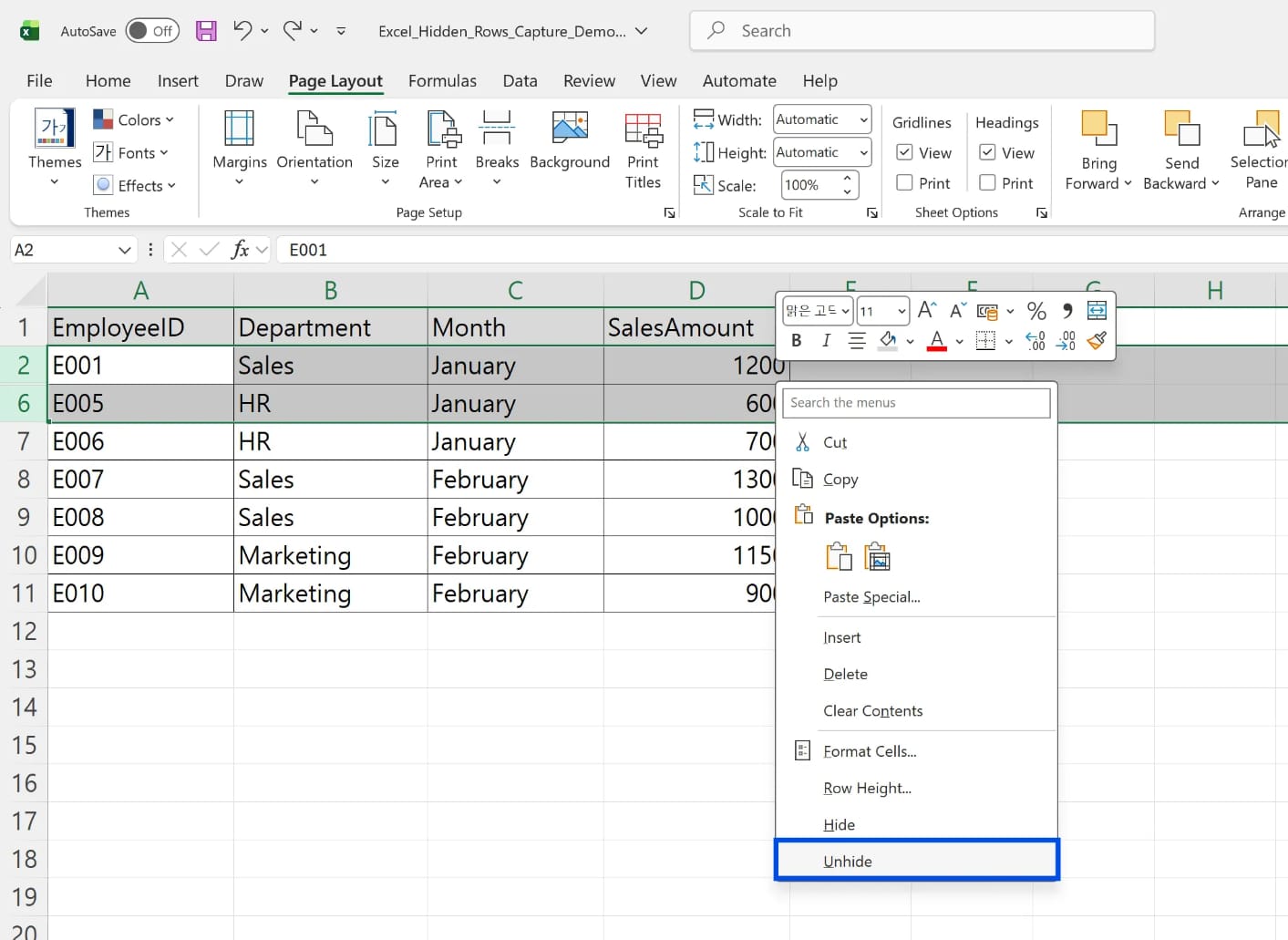
To unhide a hidden range, select the rows or columns on both sides of the hidden area, right-click, and choose Unhide. If rows 3 and 4 are hidden, select rows 2 and 5 together.
For row 1 or column A, use the Name Box to select A1, then run the Unhide command from the ribbon.
Hide vs Filter vs Group
Hide is manual. It simply removes rows or columns from view. Filter hides rows based on conditions and updates dynamically. Group creates collapsible sections that users can expand and collapse.
Use Hide for temporary personal cleanup. Use Filter for analysis. Use Group for structured reports where sections need to be collapsed repeatedly.
Hidden Rows and Calculations
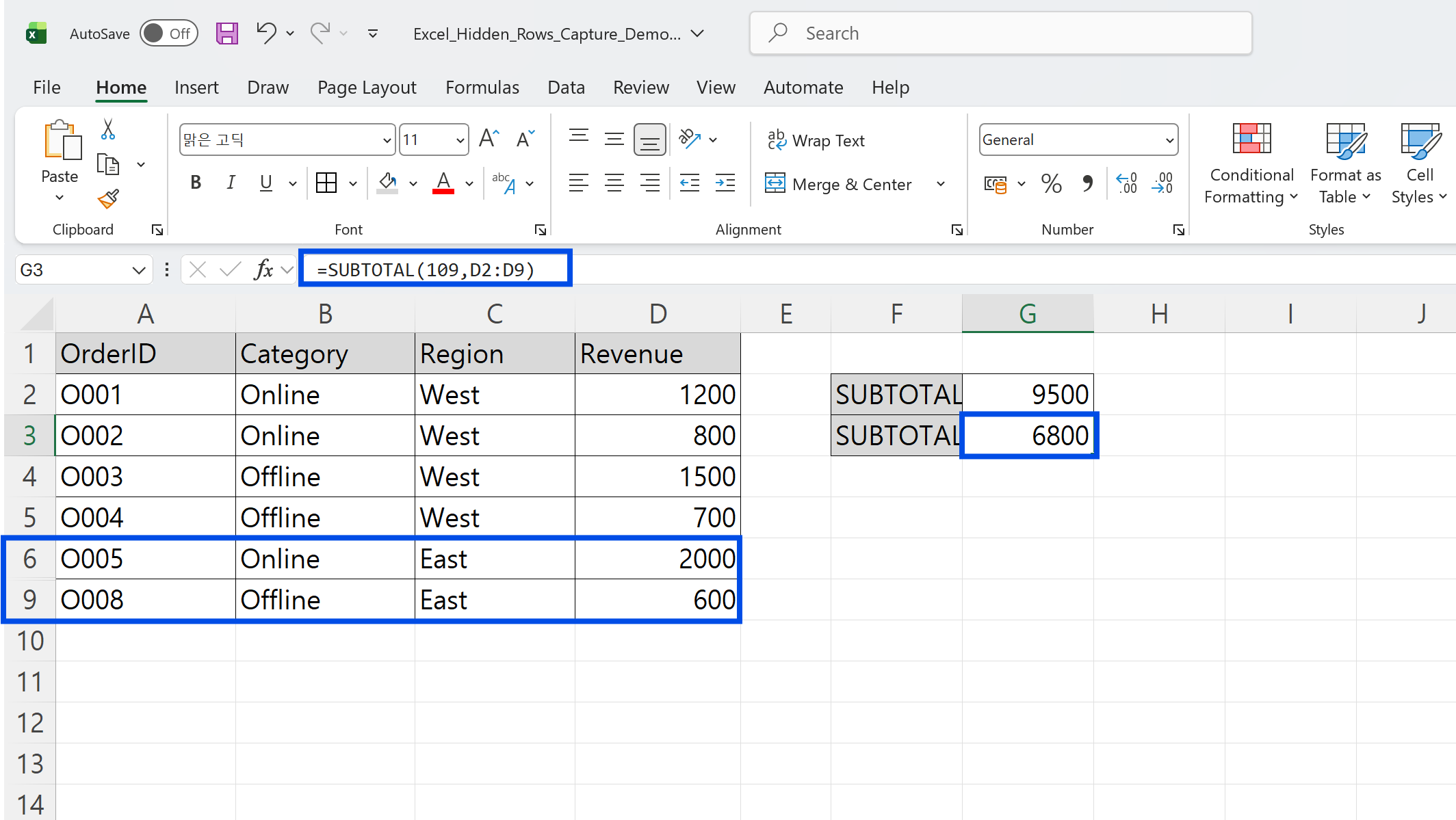
SUM and AVERAGE include hidden cells. If you want to calculate visible rows only, use SUBTOTAL or AGGREGATE. SUBTOTAL with function number 109 excludes manually hidden rows from a sum.
When Not to Use Hide
Do not use Hide as a security feature. Anyone can unhide the data. For sensitive information, remove it, separate it into another file, protect the workbook appropriately, or export only the needed view.
Make Repetitive Excel Row and Column Work Easier with inline AI
Once you understand how to hide and unhide rows or columns in Excel, the next step is automating the repetitive checks around visibility. Wouldn't it be better to stop manually hunting for hidden ranges before every review?
inline AI is a local agent that works directly inside Excel. Ask in natural language, such as check hidden rows and columns in this workbook, and it can read and edit your Excel file in real time.
Because it runs locally on your PC without uploading your data to the cloud, it can handle sensitive spreadsheets more safely. Download it today and experience the future of Excel work yourself.
Download your AI Coworker for Excel